NordVPN works on your home connection, but the Windows app gets stuck connecting on hotel or airport Wi-Fi. If you’ve already signed in to the Wi-Fi and the VPN still won’t connect, switch the app to NordWhisper. It’s a NordVPN protocol designed for networks that interfere with ordinary VPN traffic.
To find it, open Settings → Connection and security → Protocol → NordWhisper. Reconnect, then try an ordinary page and check your public IP. Start by changing just the protocol so you can tell whether it helped.
Astuce2Geek may earn a commission if you buy through links in this article, at no extra cost to you.
Start with the Windows app.
If you need an account, see the current NordVPN offer. Install or update the Windows app, then follow the steps below.
What NordWhisper is for
Some Wi-Fi networks allow ordinary web traffic while filtering common VPN connections. NordWhisper changes how the VPN connection appears to those filters, which can help it connect where NordLynx or OpenVPN struggles. Results depend on the network. Follow its terms and use a VPN only where it’s permitted.
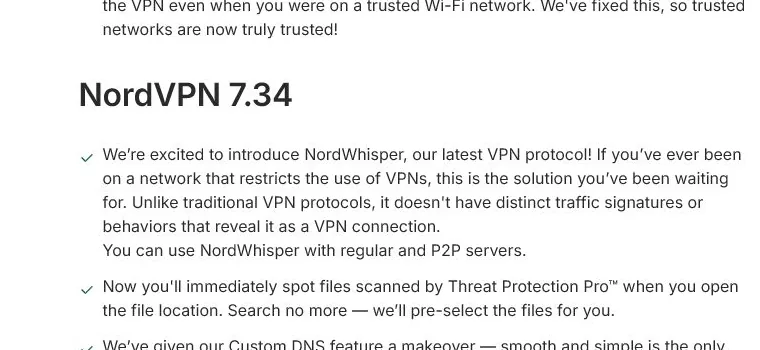
For a network that already works, I’d leave the app on Auto (Recommended) or use NordLynx for speed. NordWhisper is worth trying when connectivity is the problem. NordVPN’s NordWhisper support guide lists Dedicated IP, Meshnet, and Onion Over VPN as incompatible with the protocol. Use another supported protocol if you need those features on Windows.
1. Install or update NordVPN for Windows
Use the official Windows download or update your existing installation. Open the installer from Downloads and follow its prompts. If Windows asks for permission, check that the installer came from NordVPN before proceeding. On a managed device, ask your administrator if you need permission to install or update the app.
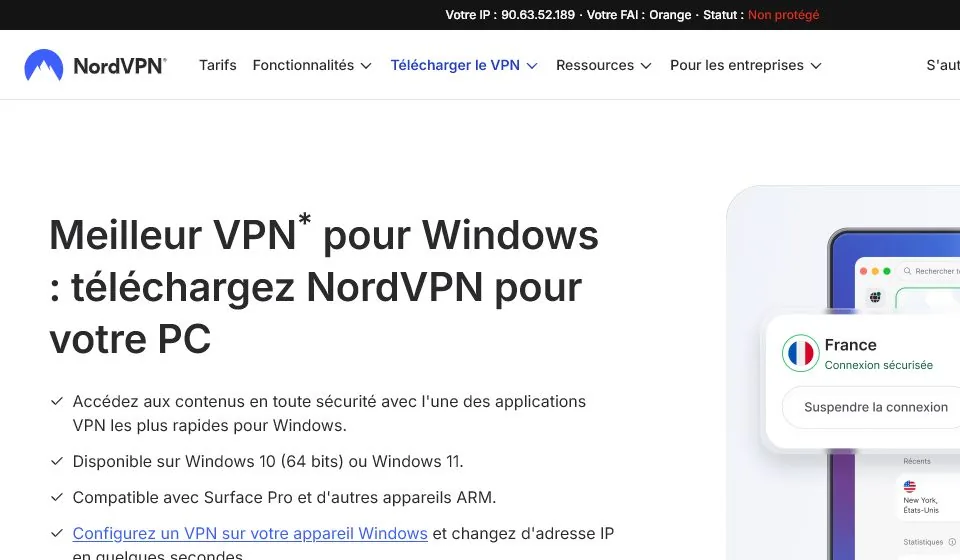
Open NordVPN and select Log in. Finish signing in to your Nord Account in the browser, then return to the app. If a public Wi-Fi sign-in page is still waiting for you to accept its terms, finish that first. A VPN protocol change can’t complete the network’s sign-in.
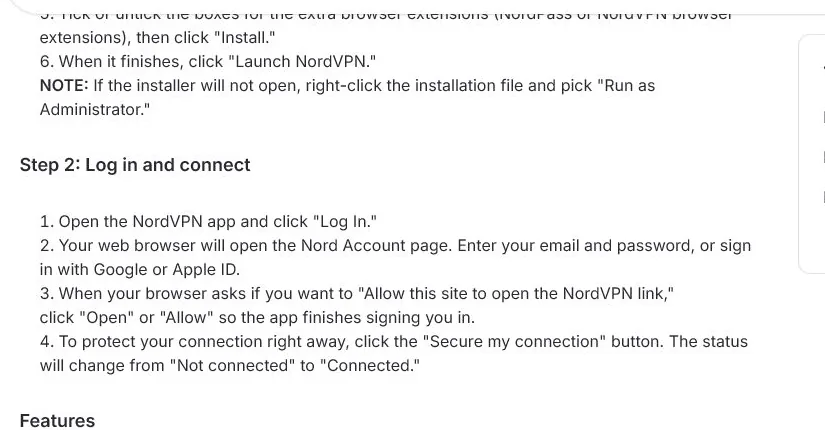
2. Try a regular connection first
Use Secure my connection, or the equivalent connect button in your version of the app. If the app connects and pages load reliably on Auto or NordLynx, keep that setting. If it stalls on this Wi-Fi, try NordWhisper without changing your DNS, Kill Switch, or server location at the same time.
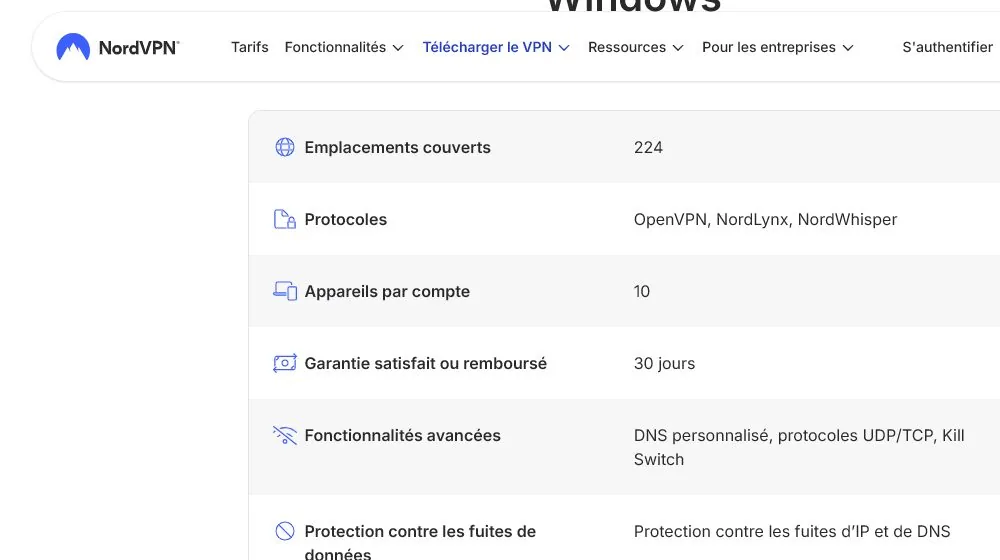
With Auto (Recommended), the Windows app can consider NordWhisper along with the other protocols available for the server. Picking NordWhisper manually lets you test that protocol specifically.
3. Select NordWhisper and reconnect
- In the NordVPN Windows app, open Settings.
- Go to Connection and security.
- Open Protocol and choose NordWhisper.
- Return to the main screen and connect. Start with the same location you tried before if it’s available.
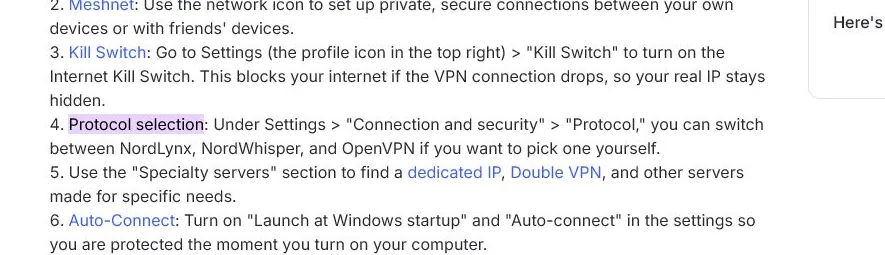
If the app asks you to disconnect before changing the protocol, do so, make the change, and reconnect. Give the app time to finish. If it still won’t connect, try one nearby regular server, then check whether the same problem occurs on another network you’re allowed to use. That helps distinguish a problem with this Wi-Fi from an app or account issue.
NordVPN’s Windows release notes also say the dedicated Obfuscated servers list moved to NordWhisper in version 8.7. On current builds, that option can use NordWhisper automatically. The steps above are for choosing it directly in the protocol menu.
4. Check that the connection actually works
Wait for the app to show Connected. Load a simple site, then try the page or service you need. Check your public IP in a browser that isn’t excluded from the tunnel. It should reflect the VPN connection. For a closer look, run a DNS, WebRTC, and IPv6 leak test.
Check stability as well as speed. NordWhisper can be slower than NordLynx. If it stays connected on a network where your usual protocol failed, that can be a worthwhile trade. You can return to Auto or NordLynx when you leave that network.
Which protocol should you use?
| Situation | What I’d try | Why |
|---|---|---|
| Home Wi-Fi or a mobile hotspot where the VPN already works | Auto or NordLynx | A good everyday starting point for speed. |
| Allowed public Wi-Fi where a standard VPN connection fails | NordWhisper | Tests a protocol designed for this type of connection problem. |
| One server connects unreliably | Another nearby server | Tests whether the issue is specific to that server. |
| You need a baseline for troubleshooting | OpenVPN | Gives you a second protocol to compare under the same conditions. |
Common problems and what to check
- NordWhisper is missing. Check for an app update and compare your menus with NordVPN’s Windows setup guide. The labels and menu locations can change with updates.
- The app says connected but a site still refuses to open. Check whether other sites work. One site may reject the VPN server’s public IP even when the tunnel is working. Switching protocols doesn’t guarantee access to a particular website. If you’re using the browser extension and want an exception for a site you trust, see our Chrome split tunneling guide.
- You’re trying several fixes at once. Keep your DNS, Kill Switch, and browser settings as they are during the initial comparison. Change one setting at a time.
- NordWhisper is slower on your usual network. Switch back to Auto or NordLynx and compare again on the same connection and server location.
I’d keep Auto or NordLynx for everyday use and remember where the NordWhisper option lives. If you’re setting up the app from scratch, check NordVPN for Windows, test a regular connection, and use NordWhisper when you have a specific reason to switch.
Frequently asked questions
Is NordWhisper faster than NordLynx?
NordLynx is optimized for speed. NordWhisper is built around connecting on filtered networks and may be slower. Compare both on the same network and server location if you want to measure the difference for your setup.
Can NordVPN choose NordWhisper automatically on Windows?
Yes. NordVPN says Auto can consider NordWhisper where it’s available, and current Obfuscated servers use it behind the scenes. Choose it manually in the Protocol menu to isolate it as a troubleshooting step.
Can I leave NordWhisper on all the time?
You can keep it selected if it works for your needs. I’d go back to Auto or NordLynx on a network that connects reliably, particularly if I want better performance or need a feature that requires a different protocol.
Does NordWhisper work with P2P servers?
NordVPN’s Windows release notes say NordWhisper supports regular and P2P servers. Check the server options in your app after you select the protocol.