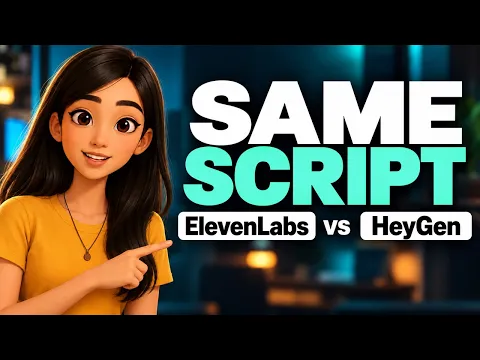
Watch the English-language comparison on Path Tek.
For a standalone voice-over, I’d start with ElevenLabs. For a presenter video you’ve already set up in HeyGen, it may be easier to keep the voice and the scene in the same project. We tested both tools with the same scripts. Watch the English tests in the video and use the four French recordings below to compare the original companion tests.
You’ll hear Bella in ElevenLabs and Soso in HeyGen. We used the same comparison method in both languages. The video shows the English tests, and the four audio players below contain the original French trials.
Astuce2Geek may earn a commission if you make a purchase through the ElevenLabs links in this article, at no extra cost to you.
Start with a line you’ll actually use.
Pick a short paragraph from your project, then try it in ElevenLabs. Keep the first take so you can compare it with HeyGen before generating more versions.
How to repeat the test
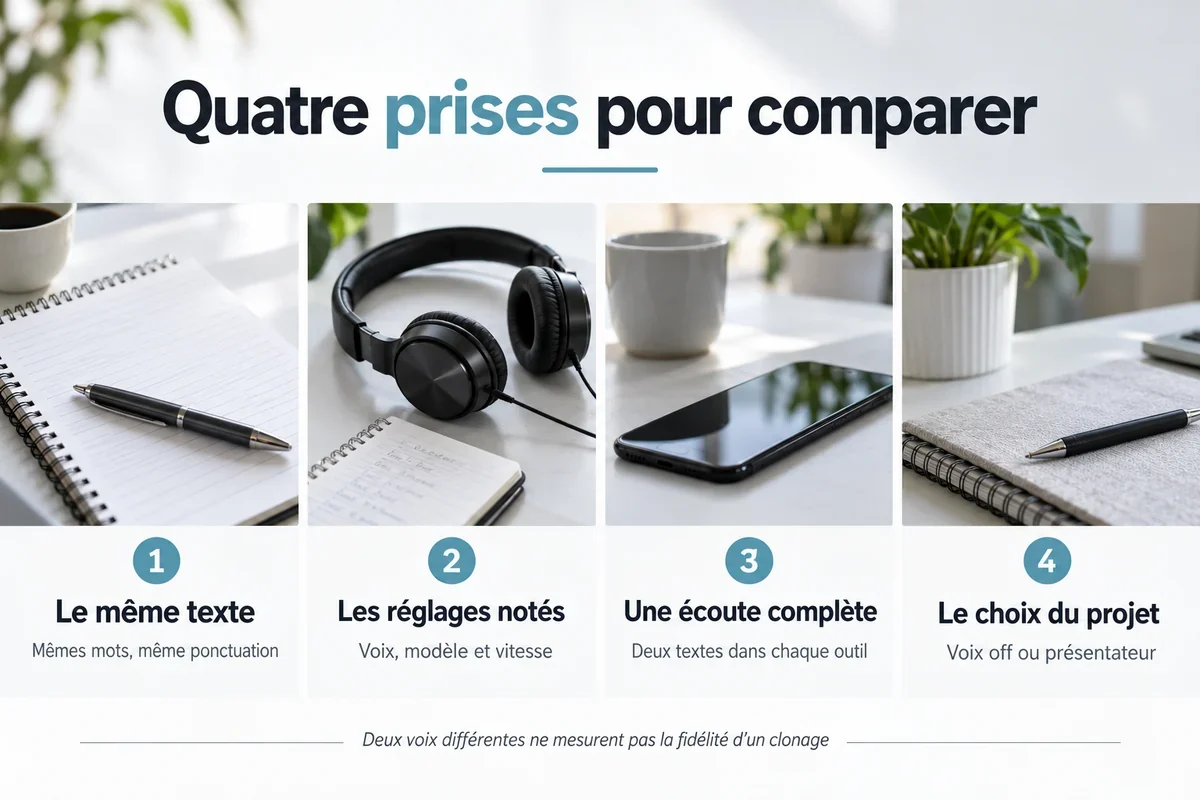
- Pick two short scripts in the language you want to test and keep the punctuation identical.
- Record the voice, model, and speed used in each tool.
- Generate one take per script in each tool. You should have four files.
- Listen to each full script at a similar playback volume.
- Choose the workflow that fits your project and the revisions you expect to make.
What the four recordings let you compare
Two voices can sound good in isolation. With the same script, it’s easier to hear how each voice handles a pause and whether a viewer would have time to follow the steps on screen.
We used Bella with Eleven Multilingual v2 in ElevenLabs and Soso with the native HeyGen Voice engine. Both read at the default speed. These are different voices, so the test compares delivery and workflow. It does not measure which platform can clone the same speaker more faithfully.
Jump to the English voice samples at 1:12. The video plays four first takes from two English scripts. The four players below contain a separate set of French tests.
1. Set up your first reading in ElevenLabs
Check that both accounts have access to the voices and enough credits for two takes. You can use the available voices here without cloning one. If you choose a different voice, write down its name so you can distinguish a change in speaker from a change in model.
Open Text to Speech, paste the first script, and check the voice and model next to the text box. The available controls can change when you switch models.
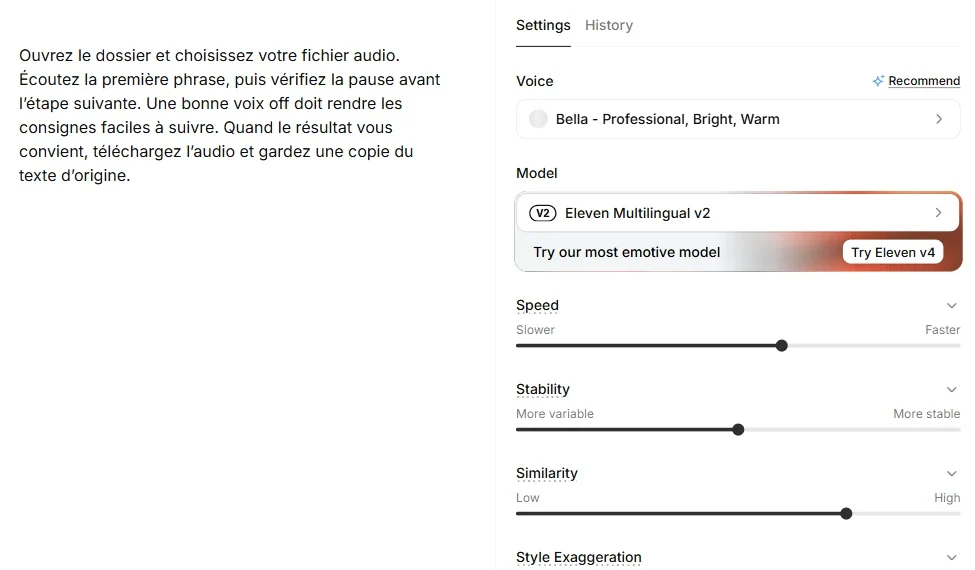
| Setting | Our test | What to check |
|---|---|---|
| Voice | Bella | Check whether the voice and accent fit the intended audience. |
| Model | Eleven Multilingual v2 | Confirm you’re testing the model you recorded in your notes. |
| Speed | 1× | Keep both readings at their normal speed. |
| Stability | 50 | Listen for a consistent reading that still has variation. |
| Similarity | 75 | Listen for the character of the selected voice. |
| Style | 0 | Keep the additional style emphasis at zero for the first take. |
| Speaker Boost | On | Check whether this option is available for your model. |
These are the values from our Multilingual v2 test. The ElevenLabs Text to Speech guide distinguishes the voice, model, and generation settings. If a control is missing in your account, check which model you selected.
Here is the exact first script in French. It asks the listener to open a folder, choose an audio file, check a pause, and download the result.
Ouvrez le dossier et choisissez votre fichier audio. Écoutez la première phrase, puis vérifiez la pause avant l’étape suivante. Une bonne voix off doit rendre les consignes faciles à suivre. Quand le résultat vous convient, téléchargez l’audio et gardez une copie du texte d’origine.
Save this paragraph for the HeyGen take. Check the cost estimate, generate once, and keep the full take. Wait until after the first comparison to change the punctuation, voice, or Stability setting.
2. Use the same words and punctuation in HeyGen
Open the voice settings and check the provider, speed, accent, and tone. We selected Soso with the native HeyGen Voice engine at 1×, using the original accent and default tone.
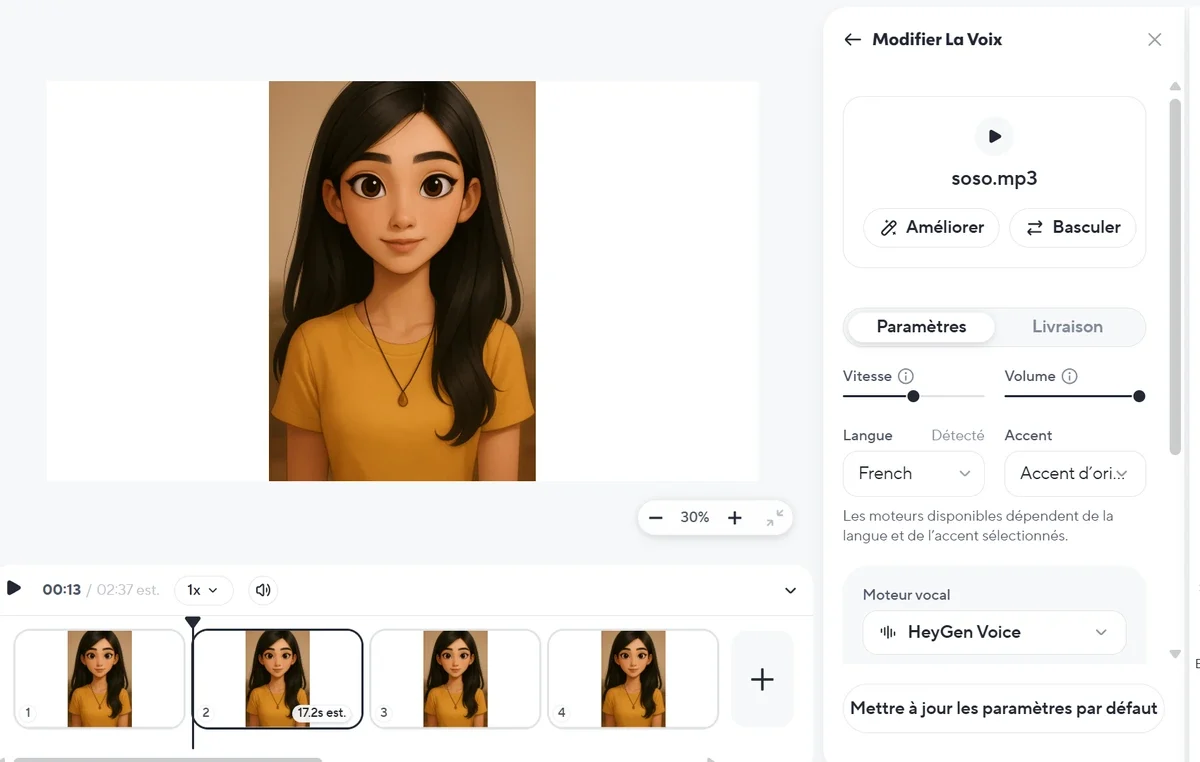
Paste the saved script exactly as it is. A comma in place of a period can change where the voice pauses. Generate the preview and keep it. Repeat with a second script in both tools. Our second passage moves from worry about a missing recording to relief after finding it. That gives the voices another kind of delivery to handle without giving only one tool special instructions.
Use clear filenames such as test1-elevenlabs, test1-heygen, test2-elevenlabs, and test2-heygen. Keep your settings nearby so you always know which take you’re playing.
3. Listen to the four French companion recordings
The first script tests how easy a set of instructions is to follow. Listen to the pause after the file selection, the transition into the next action, and the end of the final sentence.
Test 1 — tutorial instructions with ElevenLabs
Open the ElevenLabs recording for test 1 (WAV)
Test 1 — the same instructions with HeyGen
Open the HeyGen recording for test 1 (WAV)
These are the full takes at normal speed, without music. We matched the levels so a louder clip doesn’t win by default. For your test, use the same headphones and bring the voices to about the same volume.
Test 2 — worry and relief with ElevenLabs
Open the ElevenLabs recording for test 2 (WAV)
Test 2 — the same script with HeyGen
Open the HeyGen recording for test 2 (WAV)
In the second pair, listen to where the tone shifts from worry to relief. A stronger shift may suit a story. For a calm tutorial, a more understated reading may fit better.
Change one thing at a time.
If a word or pause sounds wrong, note where it occurs. Regenerate that section with one setting changed and keep the previous version so you can hear the difference.
Check which engine is generating the voice
HeyGen can offer ElevenLabs in its voice-engine menu. If you want to compare HeyGen’s native voice with ElevenLabs, check the provider in the voice settings before you start.
Selecting ElevenLabs as a provider inside HeyGen differs from importing a completed narration into a HeyGen scene. The HeyGen voice integrations guide also describes connecting a third-party account. You can listen to the four comparison clips here without setting up that integration.
Keep the settings you liked and check that the same voice and model are available for your next project. A single comparison can’t cover every combination of speaker, provider, and script.
Choose based on the deliverable you need
If your screen recordings are already finished, preparing narration as a separate track lets you revise and reuse it. ElevenLabs describes MP3 and WAV exports, with M4A and FLAC among the advanced options. Confirm which formats your account offers. A WAV export can’t recover detail that was already lost to compression in the source.
HeyGen can also generate an audio-only MP3 without rendering an avatar. If an MP3 is enough, base your decision on the voice and how easily you can make revisions.
HeyGen is especially convenient when you already have a presenter, layout, and audio track in place. You can preserve that scene and bring in separately generated narration if you need it.
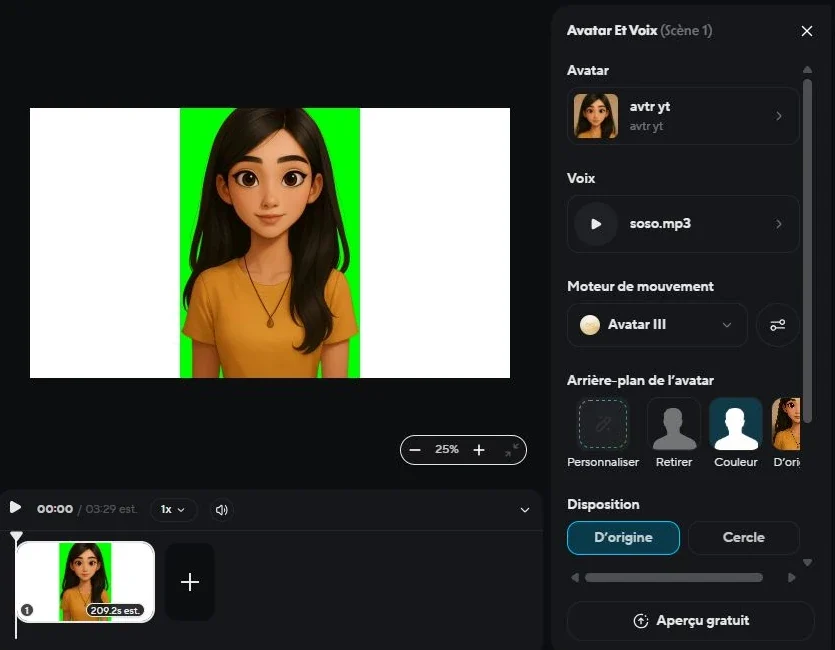
Our scene uses Avatar III for movement. Eleven Multilingual v2 and HeyGen Voice are voice engines. Check both settings if you’re producing a presenter video. ElevenLabs has video and avatar features too. Our test covers the two workflows shown, and lip sync is worth checking after any edit to the narration.
Compare the cost of the revisions you’re likely to make
Generating narration and rendering a video are separate jobs. Each platform’s credits can cover different operations, and a take you need to redo several times can change the total more than you expect.
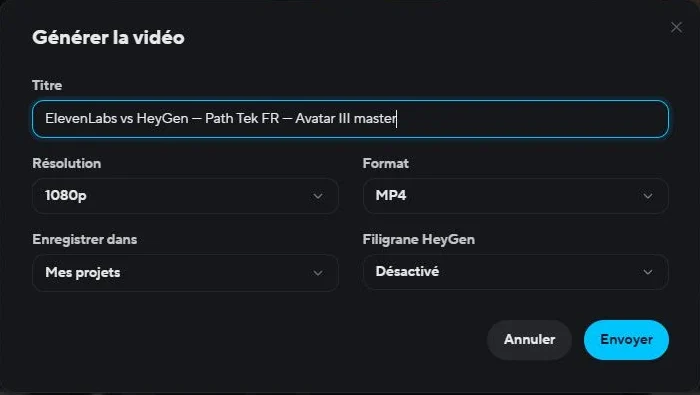
Before generating, check the length of your project, the number of revisions you need, and what your plan covers. Confirm the export settings and rights for your intended use. The export settings shown here were available in the test account.
Already have a HeyGen scene ready? Try its built-in voice first. If you mostly need to refine how a line is spoken or reuse the narration across several edits, test that line in ElevenLabs before committing to another render.
What I’d use for the next tutorial
I’d choose ElevenLabs for a standalone voice-over if its voices, controls, and exports fit the edit. I’d keep HeyGen for a video whose presenter and layout are already built in the platform.
Try one real instruction first.
Open ElevenLabs and generate a short voice-over. Compare it with the same sentence in HeyGen, all the way through the last word.
If you’re starting with a recording, see the ElevenLabs Voice Changer tutorial. To clean up the original voice, follow the Voice Isolator tutorial.
Frequently asked questions
Which tool is better for a tutorial voice-over?
I’d start with ElevenLabs if I need to create and revise a separate narration track. For a video with a presenter already laid out in HeyGen, I’d test the voice in that project first.
Did both tools clone the same voice?
No. Bella and Soso are separate voices. Within each language, both voices read the same two scripts so you can compare their delivery.
Should I copy the Stability and Similarity values?
Use them to reproduce this particular Multilingual v2 test. A different voice or model may need different settings or offer different controls.
Can HeyGen generate audio without an avatar?
Yes. HeyGen documents an audio-only MP3 workflow. Check which options are available in your account.
Why does ElevenLabs appear in HeyGen’s settings?
HeyGen supports several voice providers and can use ElevenLabs to generate speech. Select the native HeyGen Voice engine to reproduce the HeyGen part of this test.
Which tool is cheaper?
Compare the costs shown in your account for the script, any revisions, and the video render if you need one. The credit counters in the video cover different jobs.