If you’re looking for Threat Protection Pro in NordVPN for Windows, start with the shield icon. NordVPN now calls the full feature Next-gen antivirus. In current Windows versions, open Protect using the shield icon. Older versions and some help pages use the name Protection. Here’s where to turn it on, check what it’s blocking and see why a file was quarantined.
Affiliate disclosure. We may earn a commission if you buy through a link in this guide.
Open the NordVPN Windows app, select the Protection shield, then click Turn on. If the file scanner or vulnerability scanner is missing, check your plan before reinstalling. Get the NordVPN Windows app.
What happened to Threat Protection Pro?
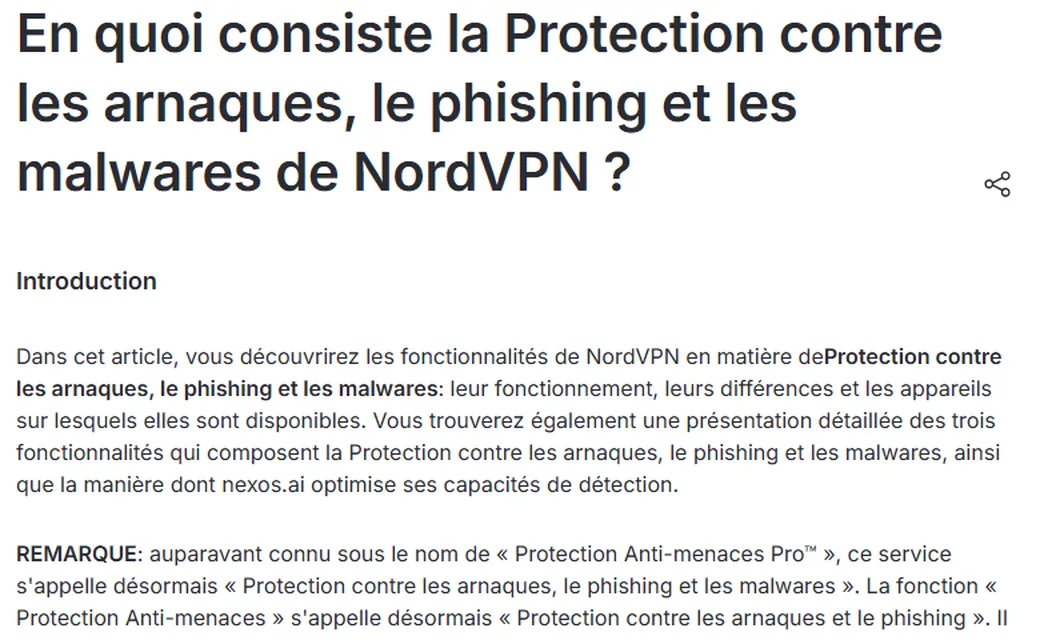
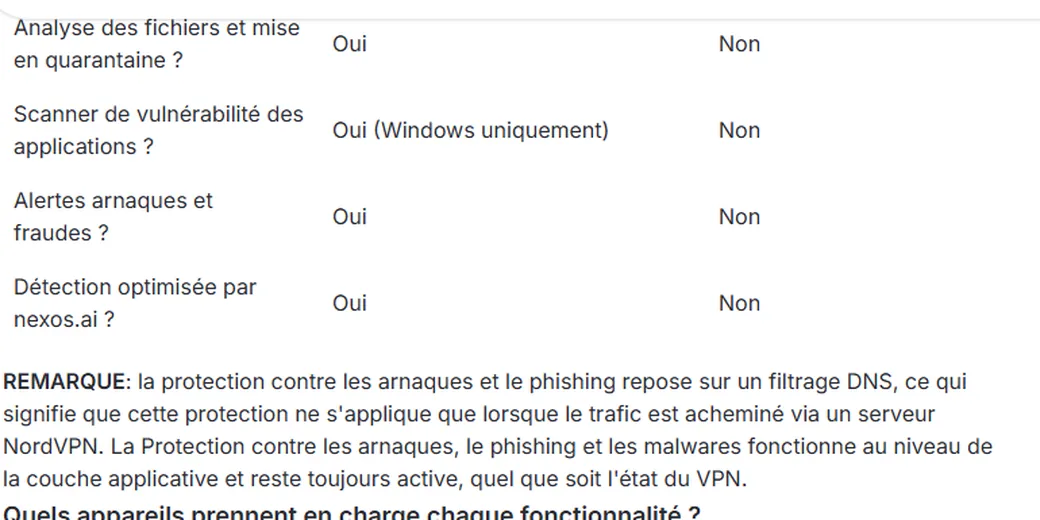
NordVPN has used Threat Protection Pro and Scam, phishing, and malware protection for what it now calls Next-gen antivirus. It also offers lighter DNS filtering under Real-time protection. Both can block risky domains on Windows. The full package adds downloaded-file scanning, quarantine and app vulnerability checks, and it can run without an active VPN tunnel.
| Feature on Windows | Next-gen antivirus | DNS-based protection |
|---|---|---|
| Block unsafe domains, ads and trackers | Yes | Yes, while connected to a NordVPN server |
| Scan downloads and quarantine suspicious files | Yes | No |
| Flag vulnerable Windows apps | Yes, with an eligible plan | No |
| Run without a VPN connection | Yes | No |
Keep Windows and your apps updated even with protection running. If you get an unexpected invoice or installer, verify where it came from before opening it.
1. Install or update the Windows app
Update NordVPN and sign in to the account tied to your subscription. If you need a fresh copy, use the installer from NordVPN or Nord Account. The current full feature supports Windows 11 and 64-bit Windows 10. A browser extension can filter some sites, but you’ll need the desktop app to scan downloads and installed Windows apps.
2. Open Protection and turn it on
Click the shield in the app’s left sidebar to open Protect, then choose Turn on. In older layouts the button can read Turn on protection. Wait for the status to confirm that protection is active. If you want to see what’s included for your account, open the feature’s settings and review which switches are available.
3. Enable the Windows vulnerability scanner
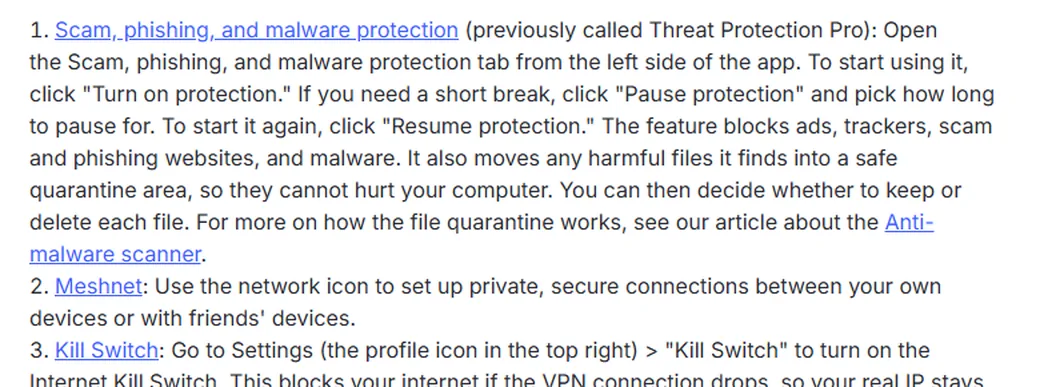
Open Protect → Advanced settings. Under Anti-malware, turn on Vulnerability scanner. NordVPN’s support guide lists Plus or Ultimate for this scanner. If you can’t see the toggle, confirm that your account has access and that you’re in the Windows desktop app.
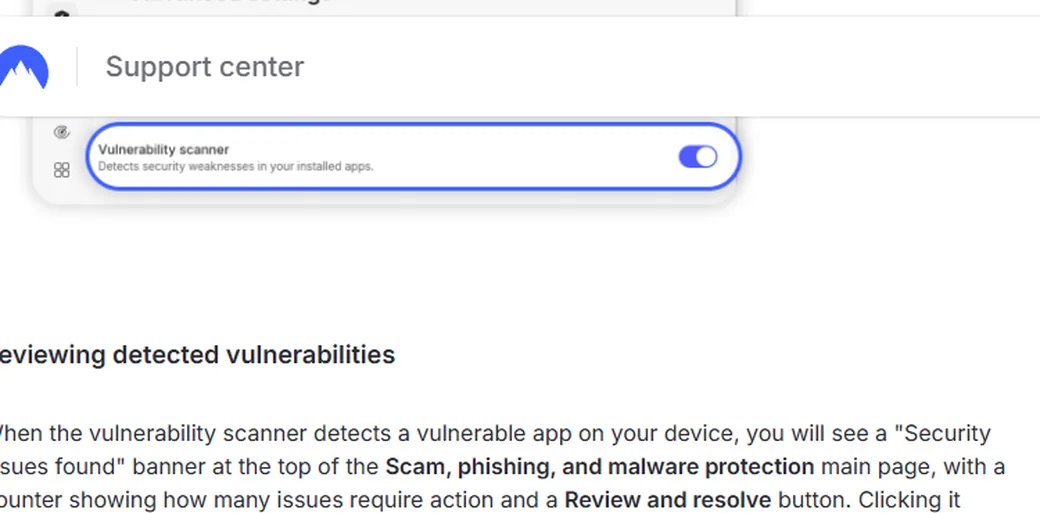
When NordVPN flags an app, select Review and resolve to open Protection history. Select the flagged app and choose Manage threat to see the affected version and severity. Update the affected app through its built-in updater or the publisher’s official site. If there are several alerts, start with critical and high-severity ones.
4. Review an alert or quarantined download
Open Protection activity or Protection history, depending on your app version. Check what NordVPN flagged, when it happened and which file or app was involved. A quarantined file has been isolated. If you don’t recognize it, leave it there or delete it. If it looks like a genuine installer, download a fresh copy from the publisher before considering whether to keep the original.
Use Pause for a short troubleshooting session only. Check the issue with a known legitimate site or download, then select Resume. Windows users can check the status from the shield tab even when they’re disconnected from the VPN.
What if Turn on is grayed out?
- Confirm which account is signed in and whether the subscription includes the feature.
- Update NordVPN, restart Windows and try again in the desktop app.
- If another security app reports a conflict, read its alert and check with the vendor before changing any exclusions.
- If the control still won’t activate, use the current official installer or contact NordVPN support with the app version and the exact message.
I’d start with the main protection on, check that downloaded-file scanning is available, and enable the vulnerability scanner if the plan includes it. When an alert appears, the activity screen is the first place I’d look. See NordVPN’s plans if your current subscription doesn’t include the controls you need.
If you’re also configuring the VPN itself, see our guides to NordWhisper on Windows and excluding a website from NordVPN in Chrome.
Frequently asked questions
Did NordVPN remove Threat Protection Pro?
The full feature is now documented as Next-gen antivirus. Look for the shield in the app if you’re coming from a guide that uses one of the earlier names.
Does the VPN have to be connected?
On Windows, Next-gen antivirus can work without a VPN connection. The lighter DNS-based protection needs an active NordVPN connection to filter traffic.
Can Chrome scan my Windows apps?
The vulnerability scanner is a feature of the NordVPN Windows desktop app. Use the shield tab and Advanced settings to check whether it’s available.
NordVPN also publishes details about Next-gen antivirus and DNS-based protection and the Windows vulnerability scanner.