When you open your laptop at a café or hotel, the last thing you want to remember is which app needs to connect first. NordVPN’s Auto-connect setting can bring up the VPN as soon as Windows joins a Wi-Fi network. You can also set it to connect on wired or mobile networks, or add an exception for a home network you manage.
Affiliate disclosure. We may earn a commission if you buy through a link in this guide.
Sign in to the Windows app and go to Profile → Settings → Connection and security → Auto-connect. Choose On Wi-Fi networks for a laptop you take out regularly. Get NordVPN for Windows.
Before you start
Use the full NordVPN app for Windows and make sure it’s up to date. The browser extension has its own Auto-connect setting, which only covers traffic in that browser. Disconnect any second VPN while you set this up so you can tell which app is handling the connection.
Auto-connect protects traffic once the VPN tunnel is up. If you also want NordVPN to start when you sign in to Windows, turn on Launch at Windows startup in the app. Opening the app and establishing a VPN connection are separate settings.
1. Open the NordVPN settings
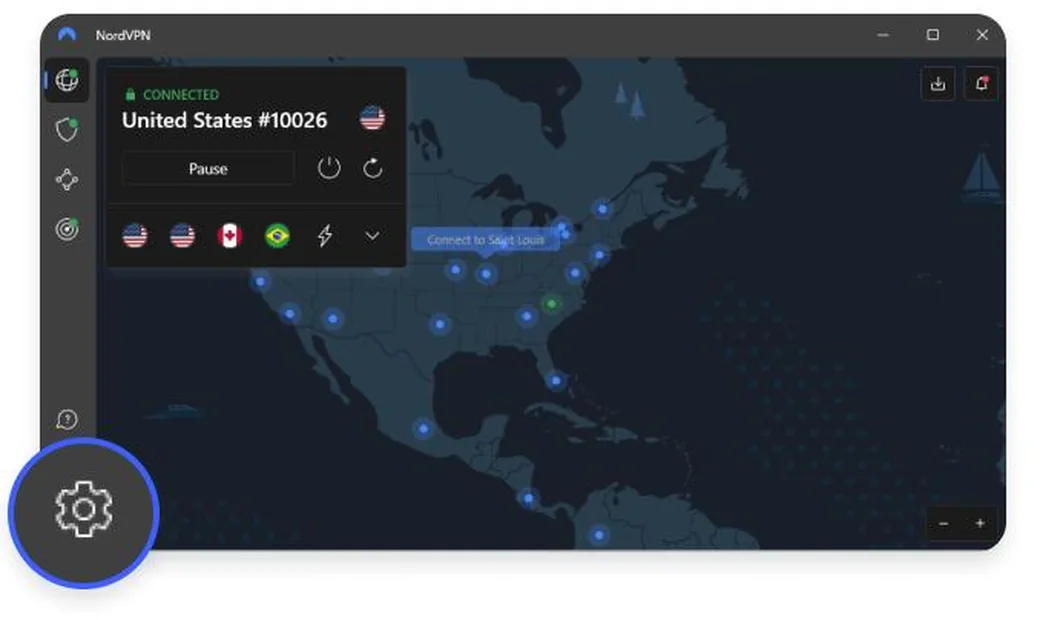
Open the app. Select the profile icon in the upper-right corner and choose Settings. In older versions, the settings cog is in the left sidebar, as shown below.
2. Go to Connection and security
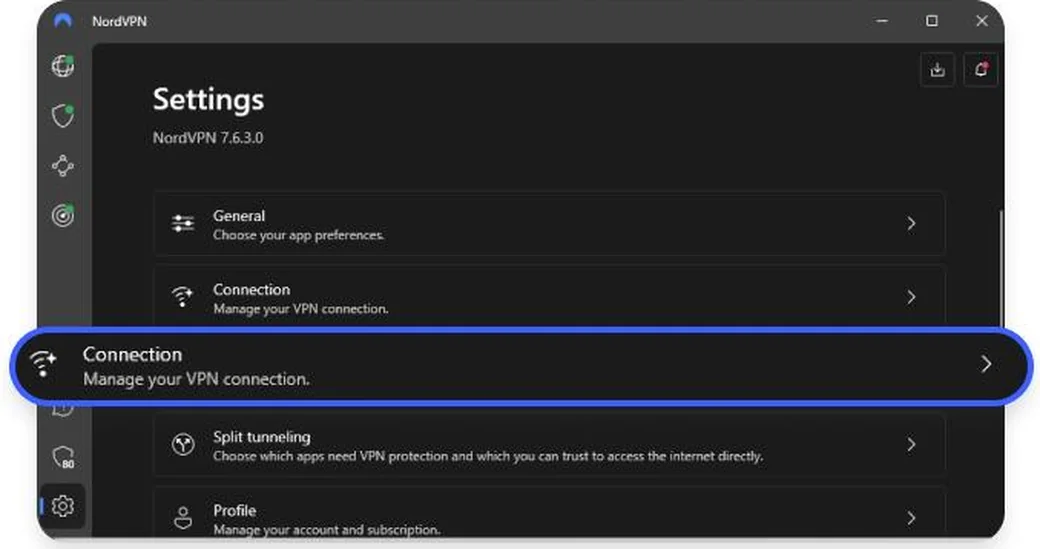
Look for Connection and security in the settings sidebar. Older builds may call it Connection. This is where NordVPN keeps Auto-connect, the VPN protocol and trusted networks. If you need a website to connect outside the VPN, use the separate NordVPN website exclusions guide.
3. Find Auto-connect and choose a trigger
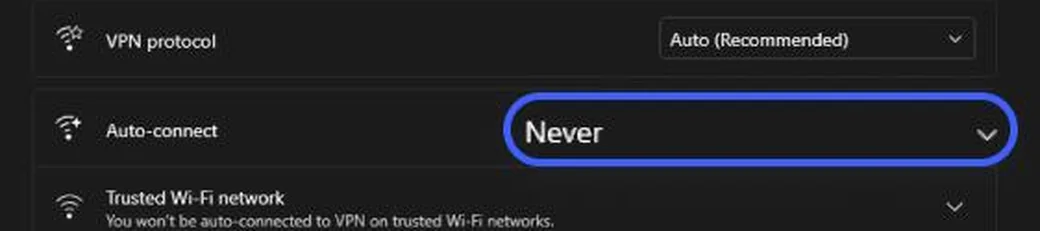
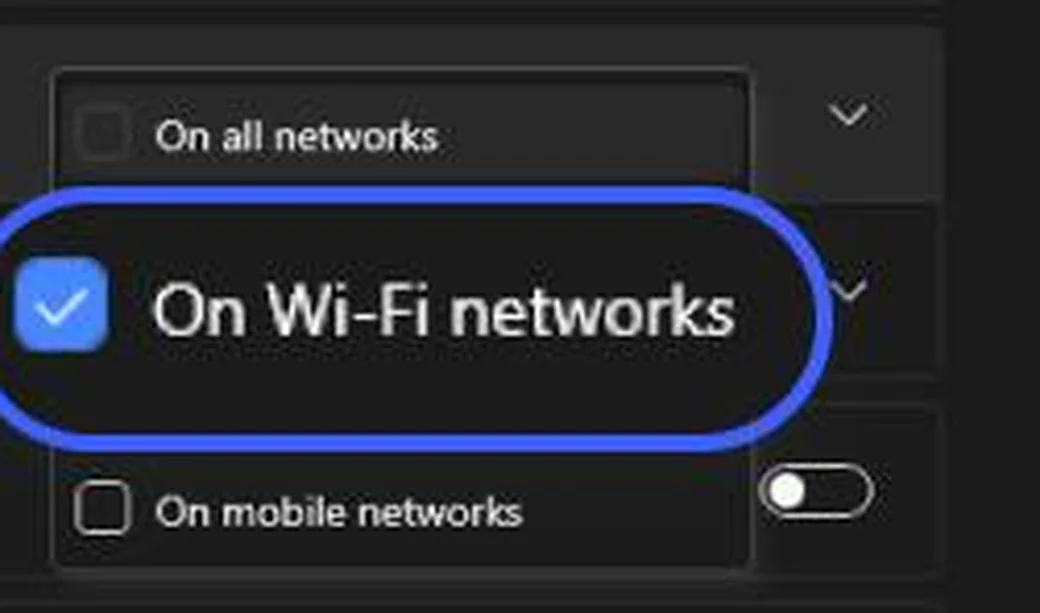
Open the menu next to Auto-connect. If it says Never, Windows can join a network without the NordVPN app starting a connection. Choose the trigger that matches where you work.
| Auto-connect option | When to use it |
|---|---|
| On Wi-Fi networks | You use a laptop at cafés, hotels, airports or coworking spaces. |
| On all networks | You want the app to connect on any eligible network, wired or wireless. |
| On Ethernet | You regularly plug in to a wired network away from home. |
| On mobile networks | Your Windows device uses a mobile data connection and the app offers this option for it. |
4. Add a trusted network only if you want an exception
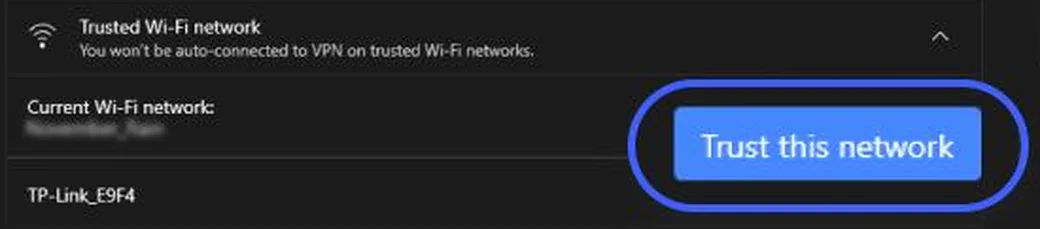
If you prefer to skip the VPN at home, join your own Wi-Fi, find Trusted networks and use Trust this network. Auto-connect will then skip that network. Leave hotels, trains and shared offices off the list, even when you know the Wi-Fi password. You can keep the list empty if you want the VPN at home as well.
5. Pick the automatic destination
For everyday use, leave the destination set to the recommended country. If you need the same country regularly, open the destination selector, choose Custom and select a country. A nearby server is usually a good starting point if calls or games feel laggy.
6. Check that the VPN connects on its own
- Disconnect the VPN and keep the NordVPN app running.
- Reconnect Wi-Fi or switch to a network that matches your trigger and isn’t on the trusted list.
- Wait for the app to show Connected without pressing the connection button. An IP checker should then show the VPN’s public address.
For a fuller check, use our VPN leak test for DNS, WebRTC and IPv6. It can help verify what your browser sees after the tunnel connects.
If Auto-connect still doesn’t work
- The app opens but stays disconnected. Make sure Auto-connect is set to the right network type and the network hasn’t been marked trusted.
- The hotel or airport login page won’t open. Complete the venue’s sign-in page, then reconnect NordVPN and confirm that the tunnel is up before browsing. NordVPN has a captive portal troubleshooting guide if the login page remains stuck.
- Connection attempts time out on one network. Test a different network first. If the app supports it and that network allows VPN use, our NordWhisper setup guide for Windows shows where to switch protocols.
For a laptop I’d start with On Wi-Fi networks and the recommended country. I’d add my home Wi-Fi as trusted only if I wanted the VPN to skip it. If you still need the app, get NordVPN and test Auto-connect once before you travel.
Frequently asked questions
Does NordVPN Auto-connect work on Windows?
Yes. In the Windows app, open Settings → Connection and security → Auto-connect and choose which network type should trigger a connection.
Which option is best for public Wi-Fi?
On Wi-Fi networks is the simplest option if public hotspots are the reason you use Auto-connect. Choose On all networks if you want the app to cover eligible wired and mobile connections as well.
Why does NordVPN skip my home network?
Check Trusted networks in the app. A network on that list is exempt from automatic VPN connection. Remove the entry if you want NordVPN to connect there.
See NordVPN’s official Auto-connect instructions for the latest Windows, Mac and mobile menu labels.