
If a banking portal, checkout page or work dashboard stops loading whenever NordVPN is connected, you can put that one domain outside the VPN and keep using the extension for everything else. In Chrome, NordVPN calls this Exclude from VPN. It’s the browser extension’s version of split tunneling.
Setting up NordVPN in Chrome?
Astuce2Geek may earn a commission if you buy through this link, at no extra cost to you. See NordVPN plans and install the official extension from the Chrome Web Store.
Quick setup
- Open the official NordVPN extension and connect to a VPN server.
- Click your profile icon and go to Settings, then Connection and security.
- Open Exclude from VPN. Enter the domain and select Add all subdomains only if you need it.
- Click Exclude, reload the website and retry what was failing.
When a website exclusion makes sense
A site may refuse to load, reject a sign-in or stall at checkout while you’re using a VPN server. An exclusion lets that site see your regular public IP address. NordVPN’s proxy protection doesn’t apply to the excluded traffic. An HTTPS connection to the website still uses its normal encryption.
Try another nearby NordVPN server before adding a rule. If the page loads there, you can leave the domain under the VPN.

1. Open the official Chrome Web Store listing
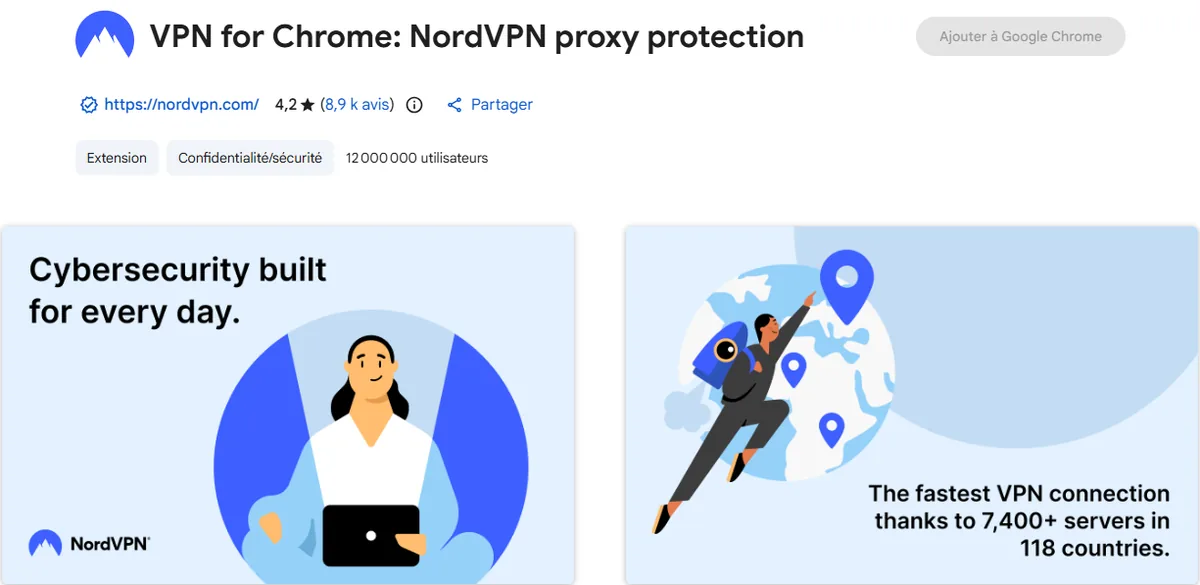
Find VPN for Chrome: NordVPN proxy protection. Check that the listed website is nordvpn.com and the developer is nordvpn S.A. Those details help you spot a lookalike extension.
Click Add to Chrome and confirm with Add extension. If the install button is unavailable in a Guest or Incognito window, open your regular Chrome profile and try again.
2. Check the features you’ll use
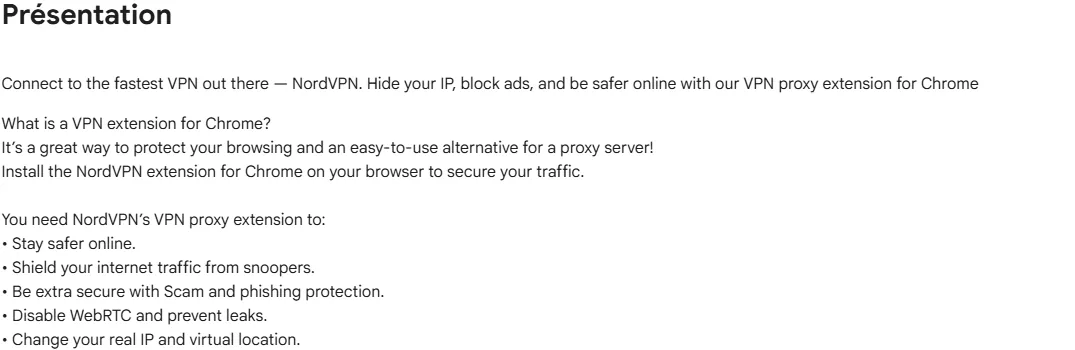
NordVPN’s extension can give Chrome a different public IP and virtual location. It also offers WebRTC leak protection and a filter for some unwanted or unsafe sites. WebRTC is used for features such as browser-based calls. If it exposes your real IP, a different proxy IP alone won’t give you the result you expect. NordVPN explains how to check the Block WebRTC setting.
These settings apply to Chrome. Use the desktop or mobile app when you need to cover traffic from other apps on the device.
3. Verify the extension version and developer
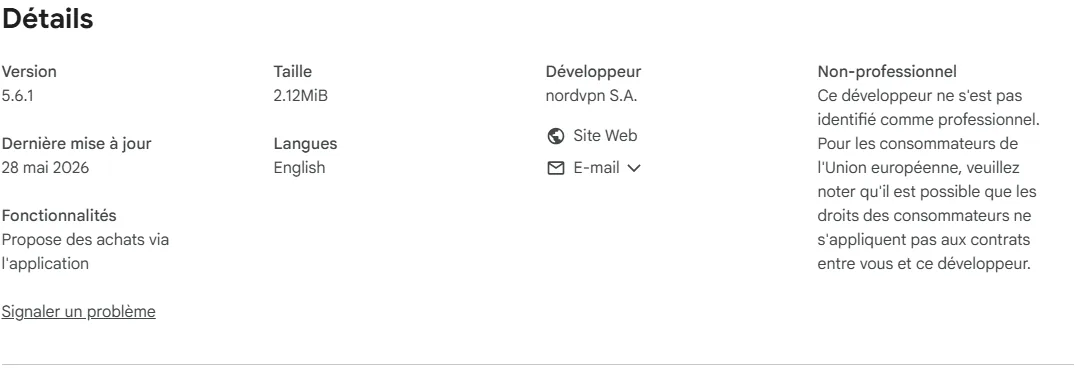
Scroll to Details in the Chrome Web Store to see the version, last update, developer and supported languages. The screenshot below shows version 5.6.1. NordVPN moved the settings into the top profile menu starting with version 6.0.0, so check the live listing for the current version.
Stick to the official listing if anything looks out of place. Skip modified copies and extension files shared in forum posts.
4. Connect in Chrome and reproduce the issue
Open Chrome’s Extensions menu using the puzzle-piece icon. Choose NordVPN and pin it to the toolbar. Sign in with your Nord Account, then click Secure my connection or choose a server.
Retry the problem page with the VPN connected. A single test will tell you whether you still need an exclusion. If only checkout fails, check the address bar when the page stalls. The checkout host may differ from the main site.
5. Add the domain to Exclude from VPN
- Open the NordVPN extension and click the profile icon in the upper-right corner.
- Open Settings, then Connection and security.
- Select Exclude from VPN and enter the domain, such as
example.com. NordVPN also accepts an IP address. - If the site needs several subdomains, look for Add all subdomains of this website. That option covers
shop.example.comalong withexample.com. - Click Exclude to save the rule.
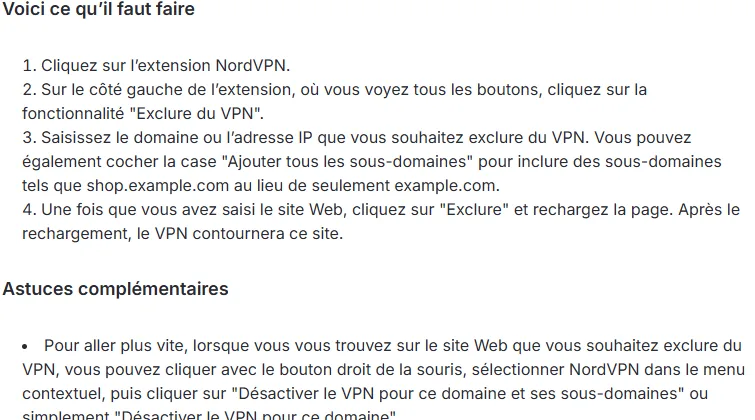
NordVPN’s official split tunneling instructions show the menu and the shortcut.
6. Reload the website and test the rule
Reload the excluded page and retry the sign-in, checkout or action that was blocked. If it still fails, open a fresh tab and check that the domain in the address bar matches the rule. Review any redirect to a separate sign-in or payment domain before deciding whether it needs its own exception.
An IP-check page in a separate tab only reports its own connection. To test the feature itself, temporarily exclude a neutral IP-check website while NordVPN stays connected. Reload it to see your regular IP, then remove that test rule and reload again to see the VPN server’s IP. For more checks, see our DNS, WebRTC and IPv6 leak test.
7. Use the right-click shortcut
Right-click on the page, open the NordVPN submenu and choose Disable VPN for this domain or Disable VPN for this domain and its subdomains. Reload the page to apply the exclusion to a fresh request. Remove the rule when you no longer need it.
| What’s happening | What to try | Why it helps |
|---|---|---|
| A sign-in page stalls on the main domain | Exclude that domain | The rest of Chrome can stay on NordVPN. |
| The site uses several account and checkout subdomains | Add the affected host or use Add all subdomains | Pick the smallest rule that covers the pages you need. |
| The site fails on just one VPN server | Change servers | You may be able to keep the site under the VPN. |
| You need protection for other apps | Use the NordVPN app | The app can route traffic outside Chrome through the VPN. |
Keep exclusions as narrow as possible
A broad rule can send more traffic over your regular connection than you intended. Start with the exact domain that fails. If the main page loads but a separate sign-in or payment host stalls, check the hostname before expanding the rule.
Keep the extension and desktop app configurations separate. NordVPN recommends against connecting both at once because they can interfere with each other. For the desktop settings, see our guide to NordVPN post-quantum encryption. For Chrome disconnects, see how to set up the extension’s Kill Switch.
My recommended setup
I’d pin NordVPN, keep WebRTC leak protection enabled and review the exclusion list whenever a site starts working over the VPN again. I’d also try a different server before adding a new rule. If the same site fails repeatedly, I’d exclude the affected domain and add subdomains only when the sign-in or checkout flow needs them.
If you’re starting from scratch, compare NordVPN plans for Chrome, install the official extension and try one reversible exclusion. Astuce2Geek may earn a commission through this link.
Frequently asked questions
Can I exclude just one website in NordVPN for Chrome?
Yes. Add the domain under Exclude from VPN, leave Add all subdomains off if you only need that domain, and reload the site.
Does NordVPN still protect traffic to an excluded website?
The excluded site uses your regular connection and sees your regular public IP. HTTPS still applies if the site supports it.
Do I need the NordVPN desktop app to exclude a website in Chrome?
The Chrome extension handles website exclusions on its own. Use the app if you need VPN coverage for the rest of your device.
When should I select Add all subdomains?
Use it when you intend to exclude every subdomain, such as the account, shop and payment sections under the same parent domain. If one specific host needs the exception, start there.


