My Realtek PCIe GbE Family Controller went from a 1 Gbps Ethernet link to 100 Mbps overnight. On my fiber connection I normally saw about 950 Mbps down and 477 Mbps up. A speed test suddenly flattened out at around 100 Mbps in both directions. Windows then confirmed that the Ethernet link itself had dropped to 100 Mbps.
I spent far too long on drivers and Windows settings before I got to the useful tests. Here’s the order I’d use now, followed by what the repair shop actually found in my laptop.
Affiliate disclosure. We may earn a commission if you buy through an Amazon link in this guide.
Check the negotiated link speed in Windows. If it says 100 Mbps, swap in a known-working Cat 5e or Cat 6 cable, try a confirmed gigabit port, and test a second device on the same cable and port. Those three results are more informative than another internet speed test.
1. Check the Ethernet link speed in Windows
Open PowerShell and run the following command. Find your Realtek adapter and look at the LinkSpeed column.
Get-NetAdapter -Physical | Select-Object Name, InterfaceDescription, Status, LinkSpeedYou can also open Settings → Network & internet → Ethernet on Windows 11 and look for the link speed in the connection details. In the older Windows screens I used, Network and Sharing Center opens an Ethernet Status window.

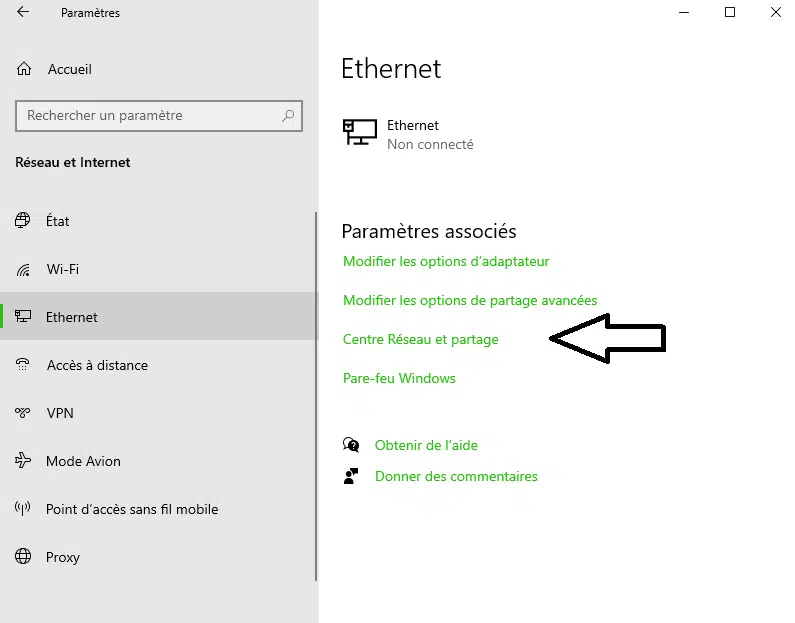
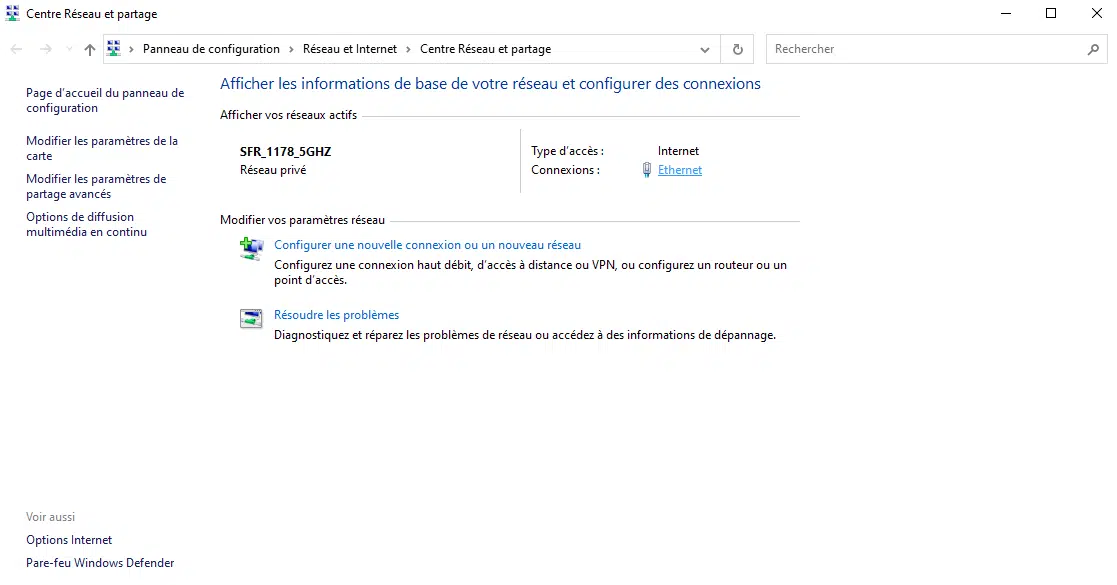
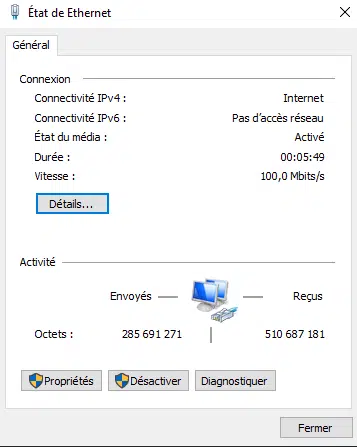
Think of link speed as the rate the wired connection negotiated with the router or switch. If Windows reports 1 Gbps and an internet test still says 100 Mbps, look separately at your ISP service, the router’s uplink or the software running during the test. If Windows itself reports 100 Mbps, start with everything between the computer’s Ethernet jack and the next port on the network.
2. Test the cable and both ends of the connection
- Unplug the Ethernet cable at both ends, reconnect until both plugs click, then check the reported speed again.
- Try a Cat 5e or Cat 6 cable that you’ve already seen negotiate at 1 Gbps with another device. If the computer normally uses a wall jack or dock, connect it directly to the router or a known gigabit switch for this test.
- Try another port on the router or switch. Check its specifications or status page if you’re unsure whether the port supports gigabit Ethernet.
- Use the same cable and port with a second gigabit-capable device. Then swap only one thing at a time so you can tell which change makes a difference.
In my setup, I tested several cables and ports, restarted the router and the fiber box, and even reset the router. I’d leave a factory reset until much later because it can erase your network settings. Gigabit Ethernet already works over a good Cat 5e or Cat 6 cable. The Primewire Cat 7 cable I had bought was part of my setup, so I’ve kept the original product link for readers who asked which one it was. Primewire Ethernet cable on Amazon France.
A cable can look intact and still negotiate at 100 Mbps. Intel documents this exact symptom and recommends testing another cable and port before drawing conclusions about the adapter. Intel’s Ethernet link-speed troubleshooting guide.
3. Check your router or switch for a 100 Mbps port
My router’s admin page showed the same problem on the port connected to my Xbox. A speed test on the console confirmed it was running slower. I checked that the router’s energy-saving mode was off, toggled it on and off, and tested the cables and ports again. The Xbox returned to 1 Gbps on its original cable. My laptop stayed at 100 Mbps.
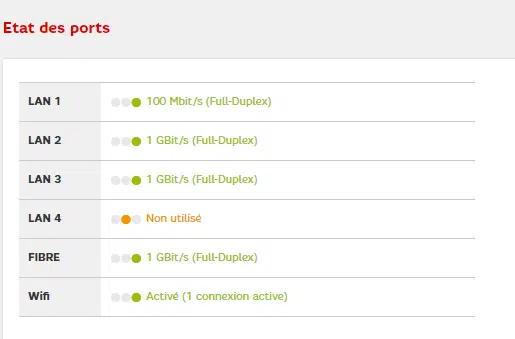
Router menus and power-saving behavior vary. Check the LAN status page or the port LEDs for the negotiated rate. Some equipment can limit a port when an energy-saving setting is active. If only the computer stays at 100 Mbps after the cable and port pass on a second device, keep troubleshooting on the computer side.
4. Check the Realtek driver and adapter settings
In Windows, right-click Start and open Device Manager. Under Network adapters, find Realtek PCIe GbE Family Controller. If you’re doing this over a remote session, wait until you have another way to reach the computer before disabling the active adapter.
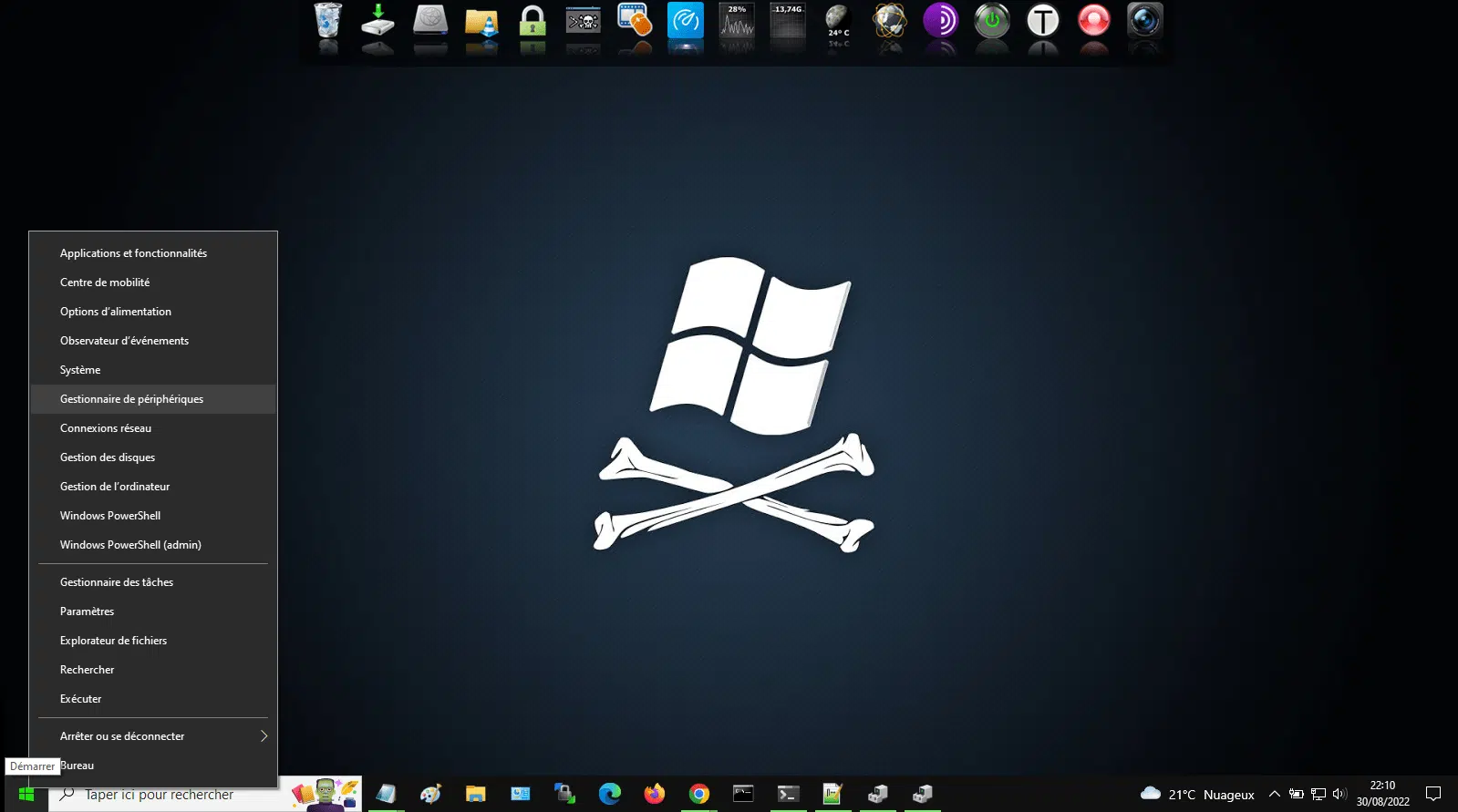
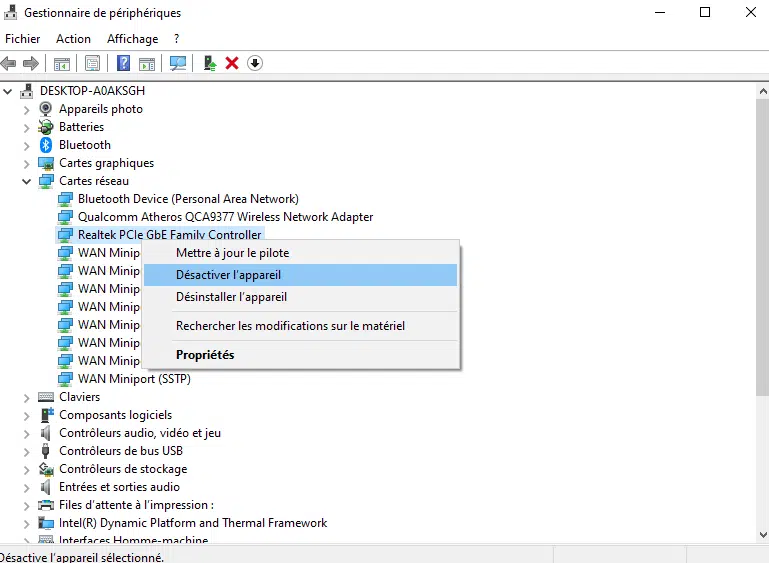
I tried disabling and re-enabling it, then reinstalling the device and restarting Windows. I also tried a TCP tuning tool. The link rate stayed at 100 Mbps. If you change drivers, get the model-specific package from your computer or motherboard manufacturer.
Under the adapter’s Properties → Advanced, check Speed & Duplex. Start with Auto Negotiation. If your driver shows Energy-Efficient Ethernet or Green Ethernet, you can test them one at a time and record the original values so you can revert anything that makes no difference.
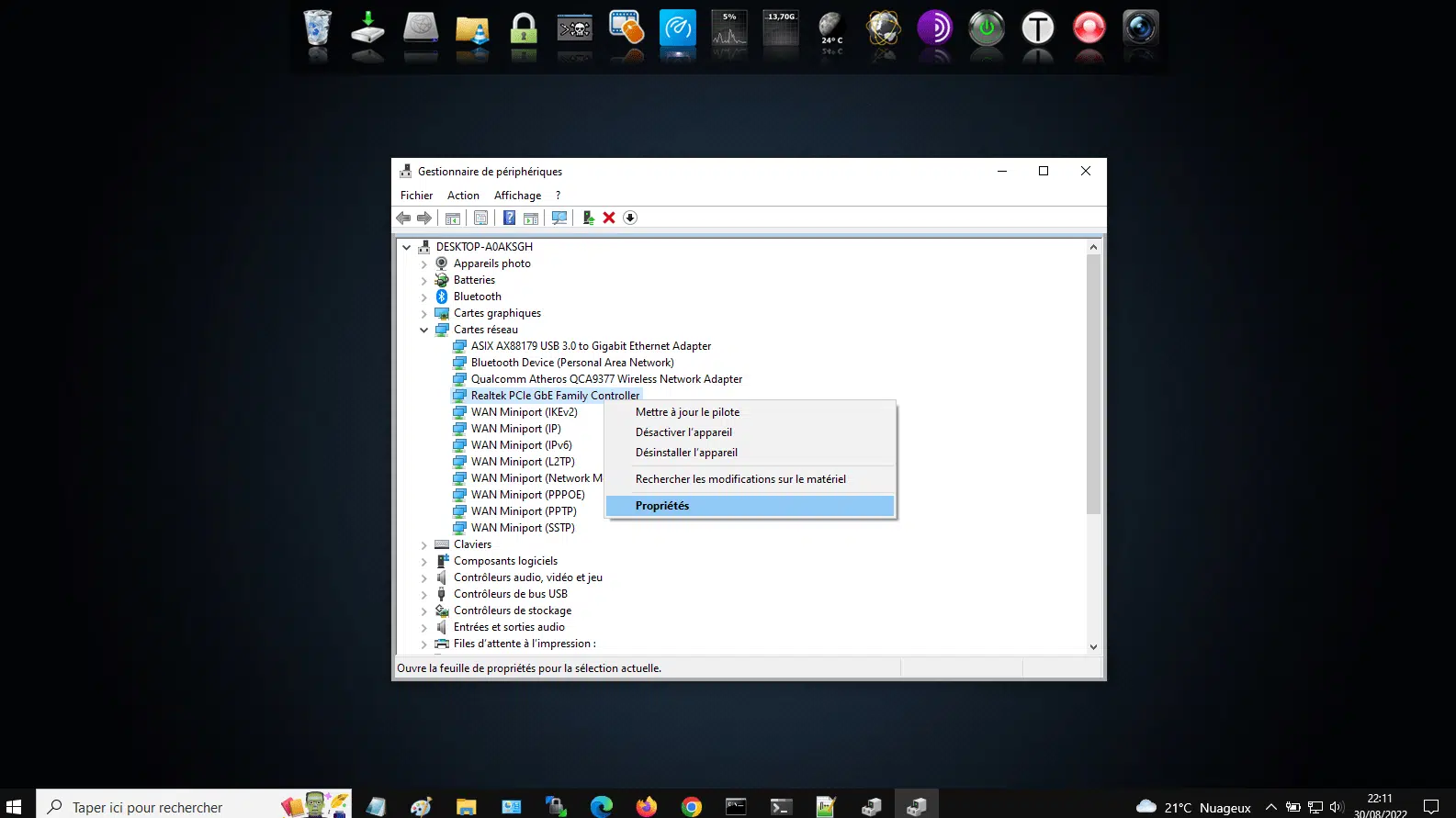
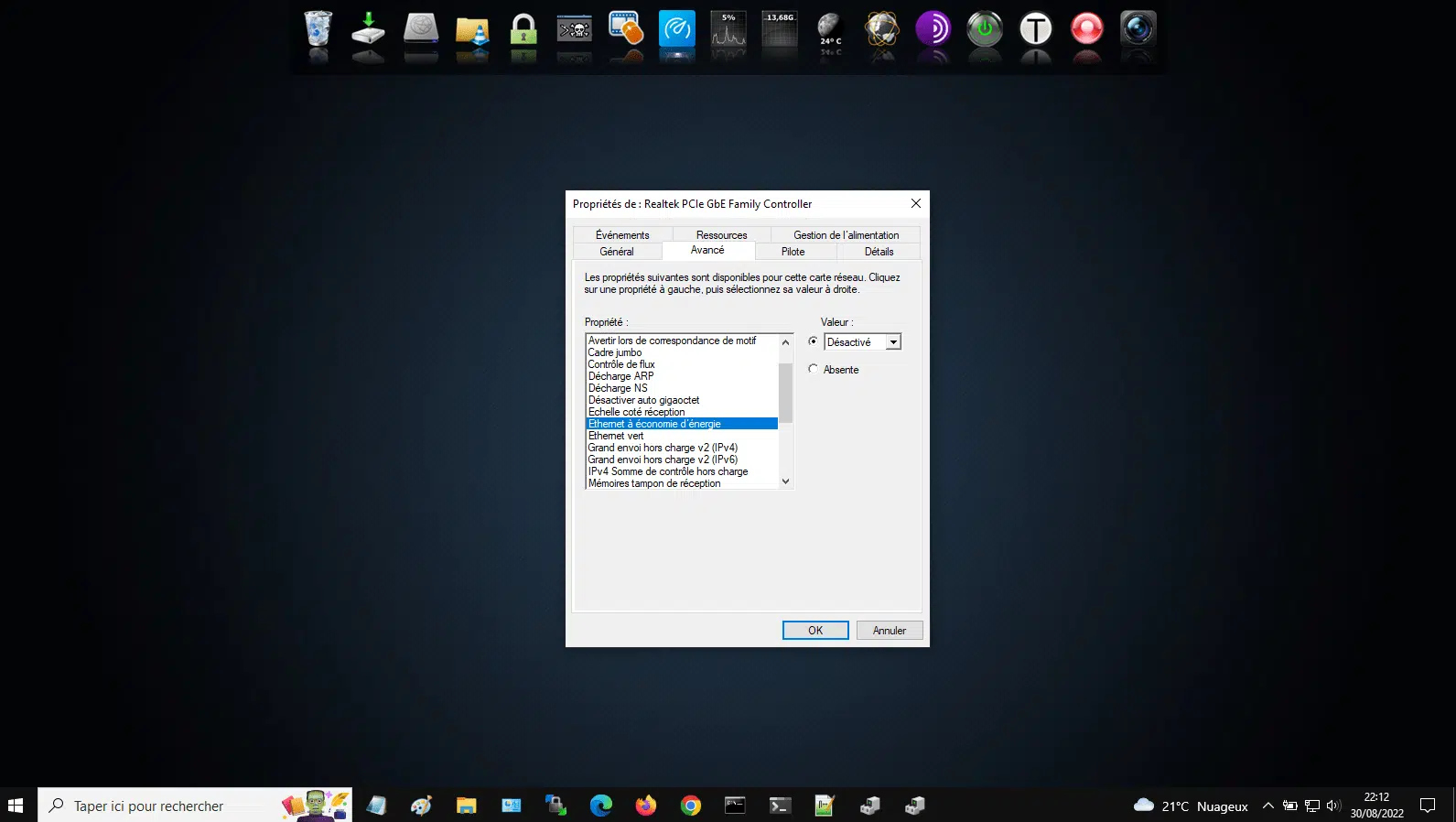
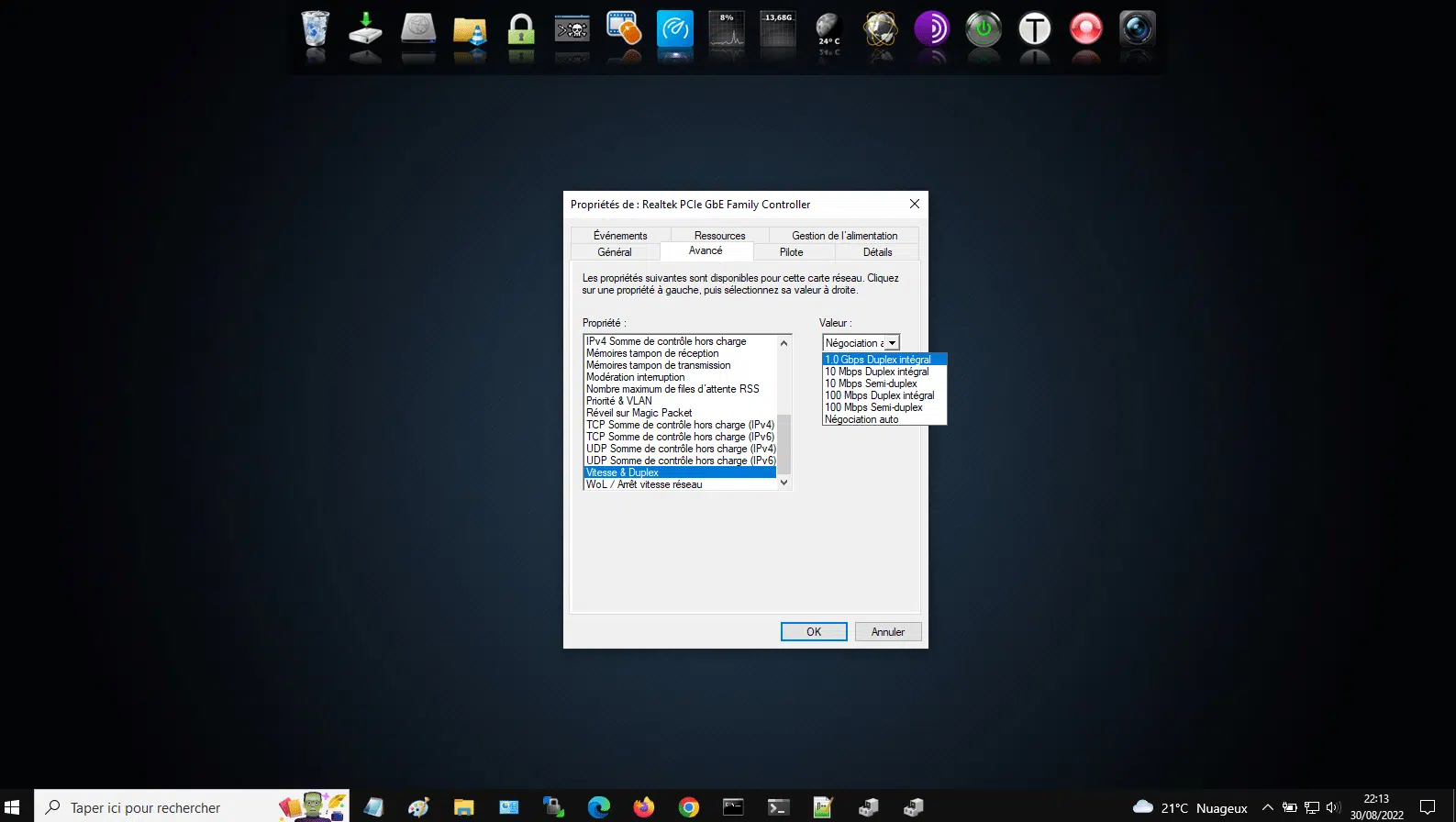
I also tried forcing 1.0 Gbps Full Duplex, without success. If the link fails or the change doesn’t help, return to Auto Negotiation. A link that falls to 100 Mbps on known-good equipment is a good reason to keep checking the physical path.
5. Rule out Windows without reinstalling it
I tried Safe Mode and then started an Ubuntu live session to test the same hardware with another operating system. A hardware report listed gigabit capability. That alone doesn’t prove the active link is running at gigabit speed. On Linux, run ip -br link to find the wired interface, then sudo ethtool INTERFACE with its actual name. Read the reported Speed and Link detected fields separately from the supported link modes.
I eventually reinstalled Windows. It didn’t restore the onboard Ethernet link, and I’d avoid that detour before testing a live USB and another adapter. A live session lets you test the computer without installing the operating system. Ubuntu’s live USB walkthrough.
What the repair shop found in my laptop
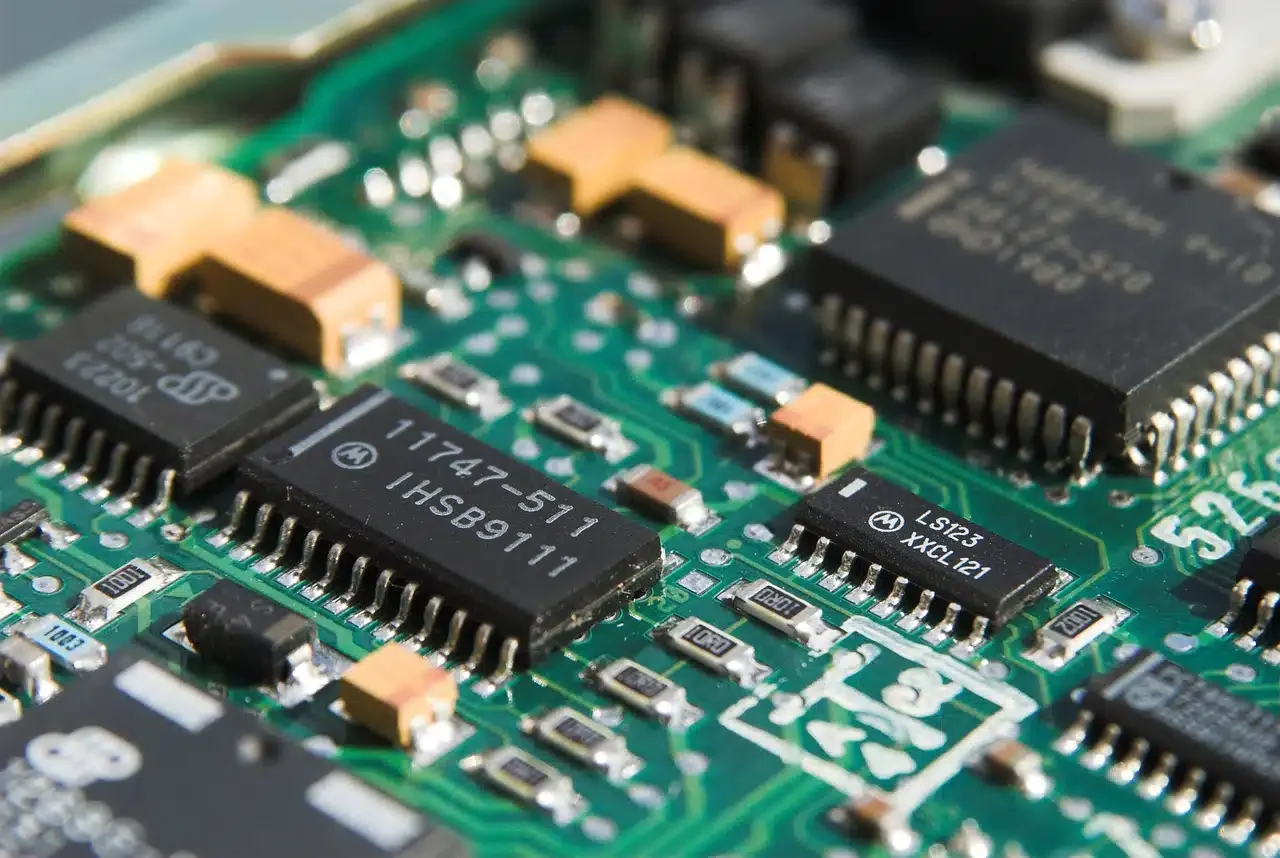
The technician expected a software issue. After opening the machine, he called to ask whether I’d spilled anything on it. He’d found tiny, sticky droplets inside. I hadn’t spilled a drink, but I had been vaping beside the laptop and had recently switched to a liquid with more vegetable glycerin. I’d noticed a similar film building up on the glass nearby. The exact damaged component was never identified, but that was the first physical clue that made sense of my particular case.
Wi-Fi gave me about 300 Mbps in both directions as a temporary workaround. I ended up using an external USB-C Ethernet adapter from Cable Matters. That let me keep a wired connection without relying on the onboard Realtek port. For a 1 Gbps service, a gigabit USB 3 adapter can be enough. For 2.5 Gbps, check that the adapter, the USB connection, and the equipment at the other end support the speeds you want.
Cable Matters 2.5 Gbps USB-C Ethernet adapter (Amazon France). If you’re short on ports, check the capabilities of any dock or hub before adding an Ethernet adapter. Our guide to powered and unpowered USB hubs (in French).
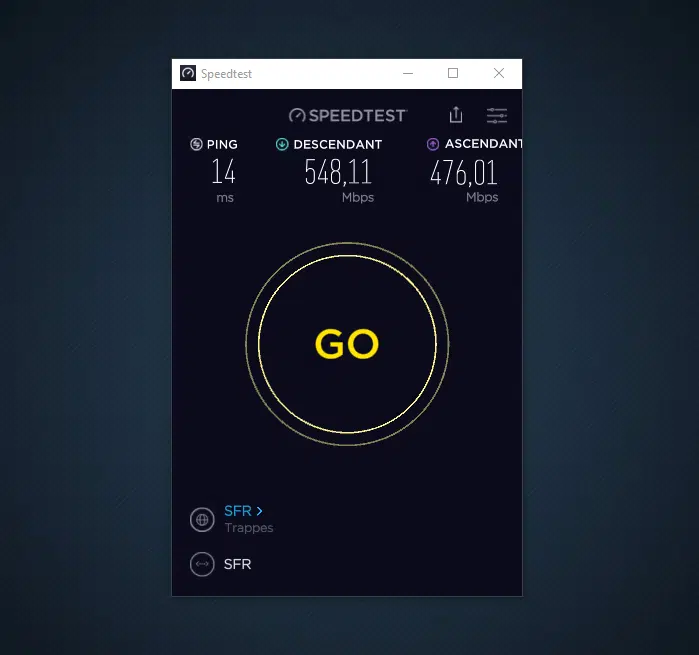
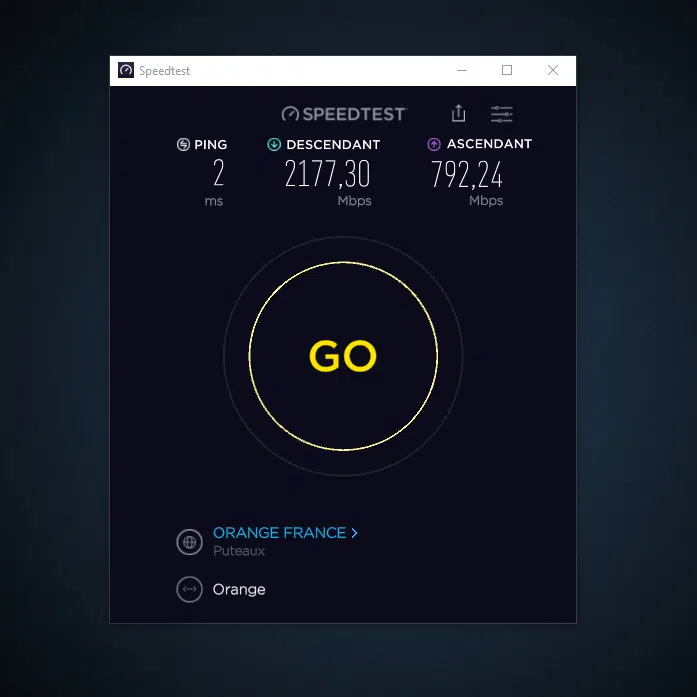
One last distinction from my tests. A security suite was affecting some internet speed tests even after I’d switched to a working Ethernet adapter. The negotiated link speed was the more useful reading for the original fault. If Windows reports gigabit but your speed test stalls or Windows freezes during the test, compare with another device and check with the security software vendor before making changes.
What I’d try first today
Check the negotiated link speed, test a known-working cable and router port, then test a second device on that exact setup. If the second device links at 1 Gbps and the Realtek adapter stays at 100 Mbps across more than one operating system, try an external adapter before reinstalling Windows or replacing the computer.