NordVPN’s post-quantum encryption adds protection to the VPN connection against a future in which quantum computers may be able to break some of today’s encryption. It’s a one-switch setup on most devices, as long as you’re connecting with NordLynx. If you use Meshnet, a dedicated IP or OpenVPN, check the compatibility notes before changing anything.
Affiliate disclosure. We may earn a commission if you buy through a link in this guide.
On Windows, open Profile → Settings → Connection and security and turn on Post-quantum encryption. Reconnect using NordLynx. Get the latest NordVPN app if you’re setting it up for the first time.
What post-quantum encryption does
Encrypted traffic can be captured today and stored in the hope it can be decrypted with better tools in the future. You’ll often see this called “harvest now, decrypt later.” NordVPN’s setting is designed to make that harder for traffic protected by its VPN tunnel. It applies to a supported NordVPN connection, so choosing a compatible protocol matters as much as turning on the switch.
Update the NordVPN app before you start. On Windows, the clearest way to check compatibility is to select NordLynx explicitly. If you leave the protocol on automatic, check which protocol the app actually uses when you connect. A connection made over another protocol won’t use this feature.
How to turn it on in Windows
1. Open Settings
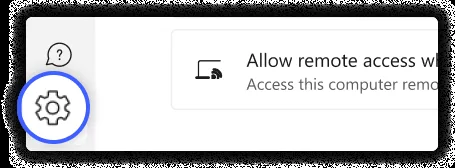
In the NordVPN desktop app, select your profile icon and open Settings. If you’re using an older interface, you may see a gear in the sidebar.
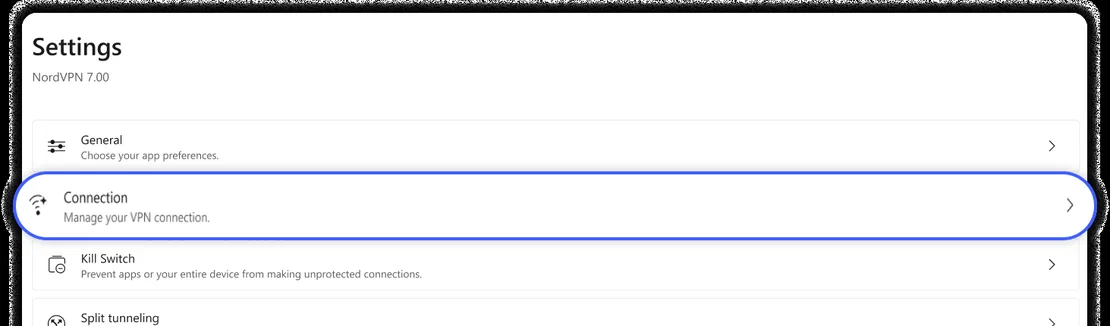
2. Go to Connection and security
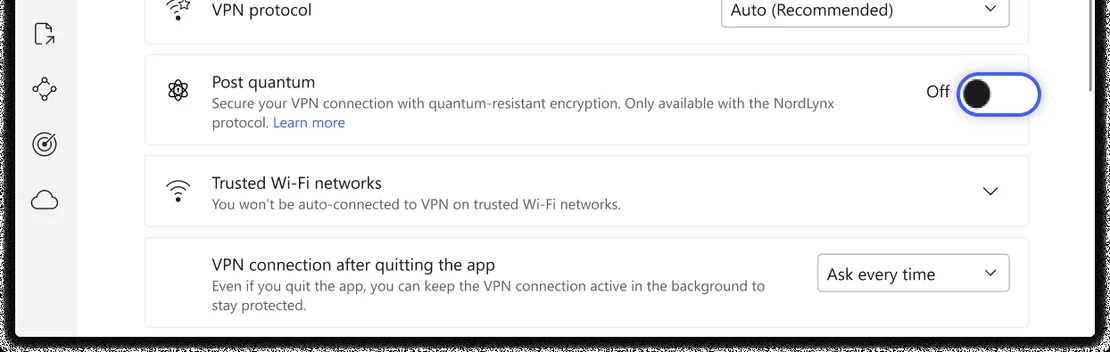
Choose Connection and security. Older app versions and some support pages use the shorter name Connections. Open the protocol menu and choose NordLynx if you’re currently on OpenVPN or another protocol.
3. Enable Post-quantum encryption and reconnect
Find Post-quantum encryption and switch it on. If the app says the change will apply the next time you connect, disconnect and reconnect to a regular NordVPN server with NordLynx. A nearby standard server makes a good first test.
How to turn it on in Android
1. Open NordVPN and tap the Profile icon in the bottom navigation.

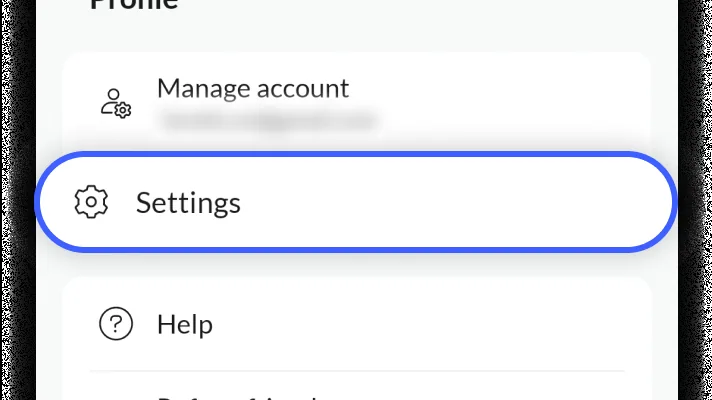
2. Open Settings from the profile screen.
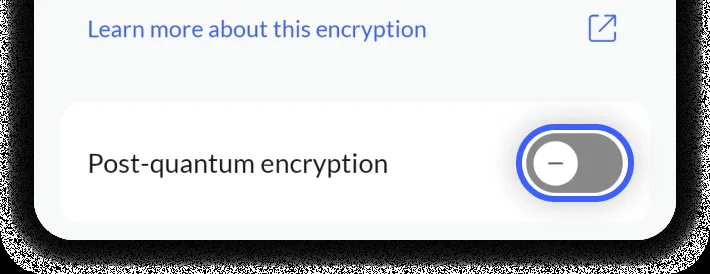
3. Select Post-quantum encryption. The row may read Off before you enable it.
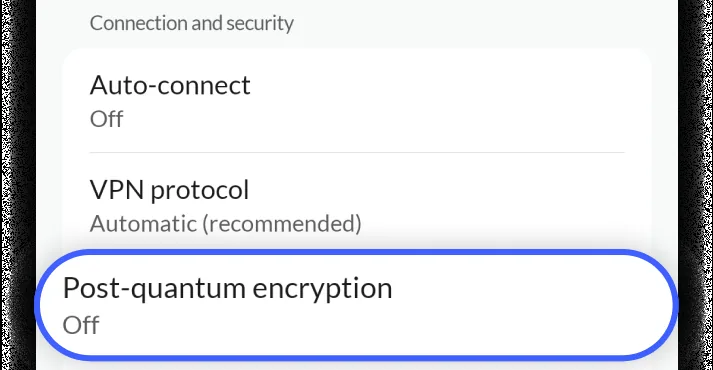
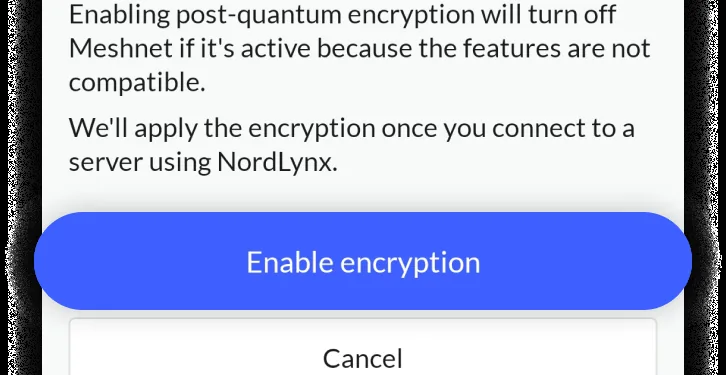
4. Turn it on. If NordVPN displays a confirmation screen, tap Turn on encryption. Reconnect using NordLynx.
macOS, iPhone, Linux and TV
| Device | Where to find the setting |
|---|---|
| macOS | Open Settings in NordVPN, choose General and turn on Post-quantum encryption. |
| iPhone or iPad | Open Profile, select Settings, turn on Post-quantum encryption and confirm. |
| Linux desktop app | Open Settings, then Security and privacy, and enable Post-quantum encryption. |
| Linux command line | Run nordvpn set pq on or nordvpn set post-quantum on. Use off in place of on to turn it off. |
| Apple TV or Android TV | Open Settings in the NordVPN app, select Post-quantum encryption and turn it on. Confirm if prompted. |
What isn’t compatible?
| If you use | What to do |
|---|---|
| OpenVPN or another protocol | Switch to NordLynx to use post-quantum encryption. |
| A dedicated IP | Use a standard server when you want post-quantum encryption. Keep the dedicated IP for accounts or systems that require it. |
| An obfuscated server | Disconnect from it and test with a regular NordLynx server. |
| Meshnet | Choose the feature you need for that session. Meshnet connects your devices privately. This encryption setting applies to the NordVPN server connection. |
How to check the connection and fix common problems
After reconnecting, confirm that the app shows an active connection, NordLynx is selected and the encryption setting is still on. You can check your public IP address and look for DNS, IPv6 or WebRTC leaks. These checks tell you what network details your browser exposes. For the encryption setting, use the status in the NordVPN app. See our VPN leak-testing walkthrough.
If the connection hangs, disconnect, reopen the app and retry with NordLynx on a nearby standard server. Check whether a dedicated IP, Meshnet or an obfuscated server is still in use. Change one setting at a time. If that still fails, try the same server with post-quantum encryption off to isolate the issue, then update the app and retry.
I’d use NordLynx with post-quantum encryption for everyday browsing, then switch configurations for tasks that require a dedicated IP or Meshnet. If you only need to secure browser traffic, our guide to Microsoft Edge Secure Network (in French) covers the built-in browser option. For the full setup on your device, check the latest NordVPN app.
Frequently asked questions
Why is the post-quantum option unavailable?
Check the protocol first. Use NordLynx on a regular VPN server and check that Meshnet, a dedicated IP or an obfuscated server isn’t active.
Will it slow down the VPN?
If you notice a change, compare two connections to the same nearby server with the same protocol. Change only the encryption setting so that you aren’t comparing different server routes at the same time.
Can I use Meshnet and post-quantum encryption together?
NordVPN currently lists them as incompatible. Switch to the feature that fits what you’re doing and reconnect when you need the other one.
For the latest instructions and device support, see NordVPN’s post-quantum encryption guide.