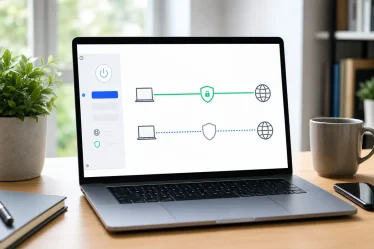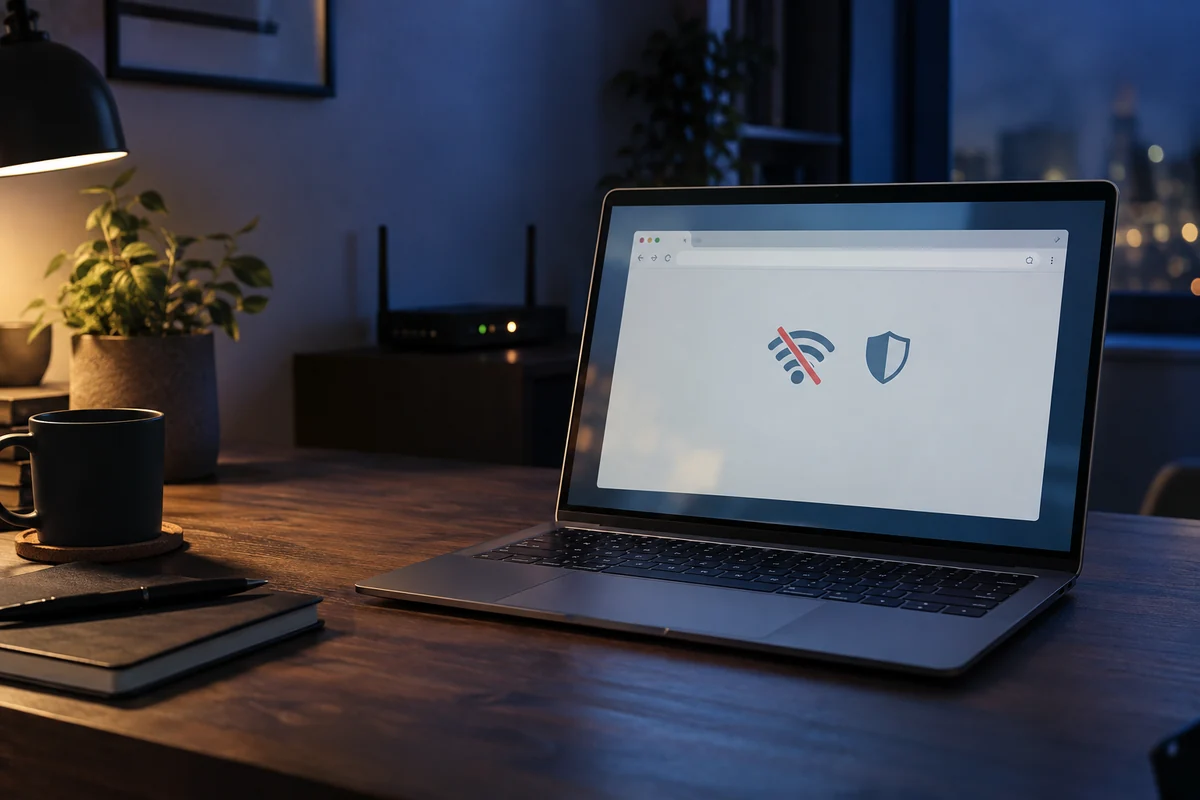
A VPN drop can be easy to miss. Chrome might keep loading pages over your regular connection even while the NordVPN extension shows that it’s offline. If you want Chrome to wait until the VPN is back, turn on the extension’s Kill switch.
It takes a couple of minutes to set up and test with an existing NordVPN subscription. Start with a page you don’t mind opening over your regular connection in case the test reveals a problem.
Need the extension?
Astuce2Geek may earn a commission if you buy through this link, at no extra cost to you. See NordVPN plans for Chrome, then install the official extension from the Chrome Web Store.
Quick setup
- Open the NordVPN extension, then click the profile icon at the top right.
- Open Settings, select Connection and security, and turn on Kill switch.
- Connect to a nearby server and load a neutral test page in a regular Chrome window.
- Disconnect in the extension and try loading the page again.
- Reconnect and confirm that the page loads.
What the Chrome Kill Switch protects
The NordVPN browser extension routes supported Chrome traffic through a proxy. Its Kill Switch blocks Chrome’s internet access when the VPN connection drops. Spotify, games, email apps and other browsers can stay online because they have their own connections.
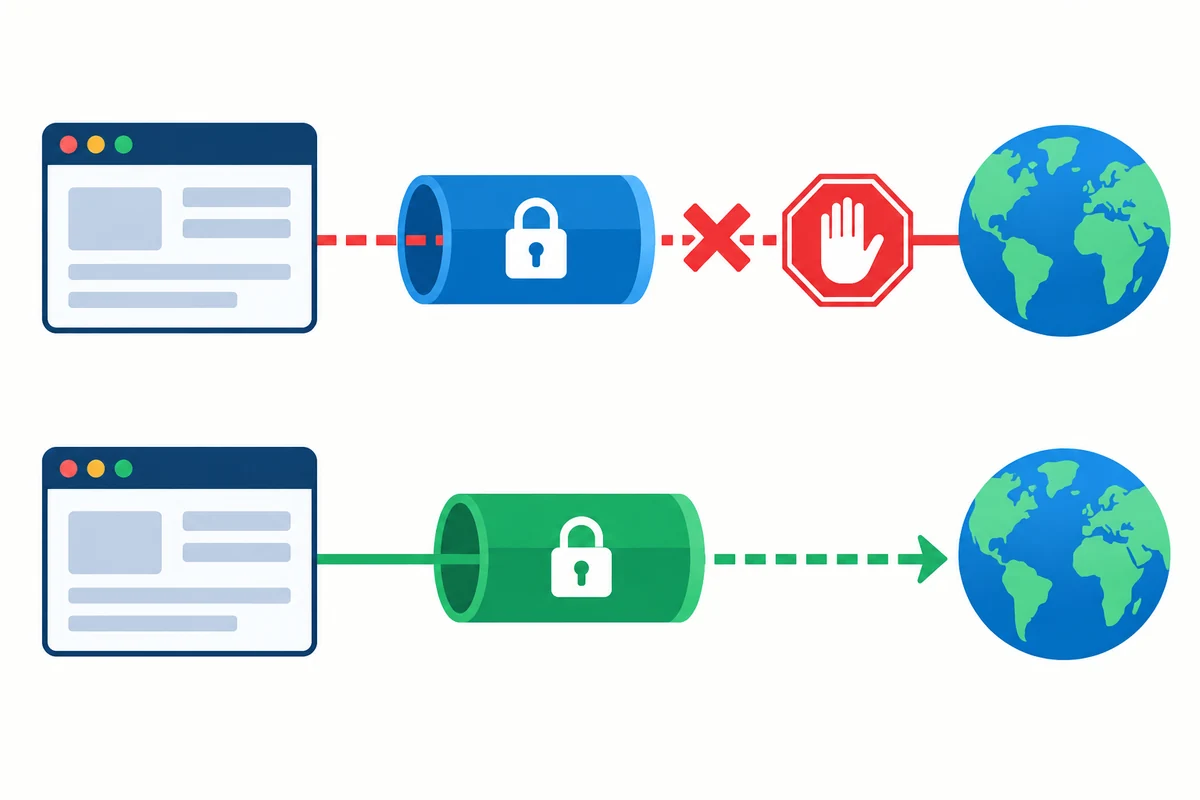
For this test, leave the Windows app disconnected and use the browser extension on its own. NordVPN says running both connections at the same time can cause interference.
Check the extension version
Open Chrome’s Extensions menu using the puzzle-piece icon and pin NordVPN. If you can’t find it, select Manage extensions and check that the official NordVPN extension is installed and enabled.
To update Chrome, open the three-dot menu and go to Help, then About Google Chrome. Relaunch Chrome if an update was installed.

NordVPN moved the extension settings to the profile menu in version 6.0.0 on August 31, 2026. Older screenshots may show a settings icon along the bottom. The extension release notes explain the change.
Still seeing the old layout?
In Manage extensions, turn on Developer mode to reveal the Update button. Click it, switch Developer mode back off, then relaunch Chrome and check the profile menu again.
Turn on Kill Switch in the NordVPN extension
- Click the NordVPN icon in the Chrome toolbar. Sign in with your Nord Account if prompted, then click Secure my connection or choose a nearby server.
- Click your profile icon at the upper right of the extension window and open Settings.
- Go to Connection and security and turn on Kill switch. Older layouts may show a separate Security and privacy section.
- Close and reopen the extension panel to confirm the switch stayed on.
Pick a test site outside your Exclude from VPN list. An excluded domain is set up to use your regular connection, so it gives you the wrong starting point for this check.
Test the Kill Switch and reconnect
With the extension connected, open a public page such as a weather forecast. Disconnect through the NordVPN extension and try loading a different neutral page in a new tab. A cached copy may appear when you reload an existing tab. The expected result is that the new page fails to load until you reconnect.
Connect to NordVPN again and retry the same page. It should load. To check what happens on startup, quit and relaunch Chrome, then look at the extension status. If it’s still disconnected, try the same check before reconnecting. NordVPN’s release notes describe a message that can appear when the Kill Switch blocks a page after a browser restart.
A blocked page can look like a network fault
If the extension is disconnected and Chrome can’t reach your test site, reconnect NordVPN and try again. Turn off the Kill Switch only if you intend to use your regular connection in Chrome.
Check for leaks while the VPN is connected
The disconnect test tells you whether Chrome falls back to your normal network connection. To check what Chrome exposes while the VPN is active, run a DNS, WebRTC and IPv6 leak test. Crop out your full IP address before sharing any screenshots.
What to check if Chrome stays offline
Start by opening the extension to see whether it reconnected after Chrome launched. If it shows that you’re offline, pick a nearby server, wait for the connection to complete and open a fresh tab.
| What you see | What to check |
|---|---|
| Nothing loads after Chrome starts | Reconnect NordVPN. Turn off the Kill Switch only if you want Chrome to use your regular connection. |
| The Kill Switch setting is missing | Update Chrome and the extension, then reopen the profile menu. |
| One site still loads during the test | Check Exclude from VPN and try a fresh page that isn’t listed there. |
| The connection drops repeatedly | Try a nearby server, then restart your router and Chrome. |
| Chrome stays offline after reconnecting | Sign out of the extension, sign back in and reinstall it from the Chrome Web Store if needed. |
| Other apps still have internet access | The extension covers Chrome. Use the desktop app to protect traffic from other applications. |
Check for a second proxy extension or a browser filter if Chrome still stays offline. Test one setting at a time and restore it when you’re done so you can work out which one was involved.
Try the same test briefly on a mobile hotspot to rule out a Wi-Fi issue. If Chrome works there, restart your router and reconnect the computer to Wi-Fi. If both networks behave the same way, reinstall the official extension or try NordVPN’s extension troubleshooting steps.
Should you use the Chrome extension or the Windows app?
The extension is a good fit if you mainly want protection in Chrome and want its traffic to stop when the connection drops. It also lets you exclude individual sites from the VPN when needed.
Use the Windows app if you need coverage across browsers, games, messaging apps or other software. It has its own Internet Kill Switch and App Kill Switch. You can keep both products installed and connect only the one you need for that session. See NordVPN’s comparison of the app and extension for coverage details.
Looking for a subscription? Compare current NordVPN plans and check the renewal price before choosing. Astuce2Geek may earn a commission through this link.
Frequently asked questions
Why won’t Chrome load pages when NordVPN is disconnected?
With the Kill Switch on, Chrome waits for the NordVPN connection to return. Reconnect to a server to restore browsing. Turn the feature off only when you’re comfortable using your regular connection.
Does the Chrome Kill Switch cover all of Windows?
It covers the browser traffic handled by the extension. Configure the separate Windows Kill Switch if you need coverage for other browsers and desktop apps.
Where is the Kill Switch in version 6 of the extension?
It’s under the profile icon at the top right of the NordVPN extension. Open Settings and look in Connection and security. If the extension still displays an older layout, update it from Chrome.
Why does one site still work during the test?
See whether its domain is listed under Exclude from VPN. Check a fresh page on another domain to avoid confusing a cached page with live access.