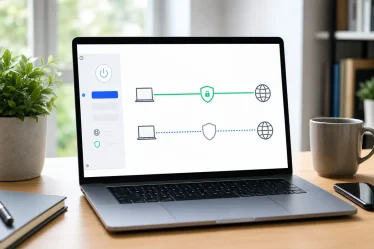

Watch the English voicemail tutorial on Path Tek.
A good business voicemail greeting tells callers they’ve reached the right place, explains what to leave, and gives them a realistic idea of when you’ll call back. Start with a short script, choose a clear voice in ElevenLabs, and listen to the whole file before you change the greeting on your phone system.
The English video shows how to set up a greeting in ElevenLabs. At 1:35, listen to the Pine Workshop greeting, which was generated with HeyGen. The downloadable French MP3 below is a separate example.
Astuce2Geek may earn a commission if you make a purchase through the ElevenLabs links in this article, at no extra cost to you.
Start with a short greeting.
Write down your business name and one instruction for the caller, then open ElevenLabs to prepare the voice. Check your credit balance and the commercial usage rights under your plan before generating anything for your business.
The quick version
- Write the greeting with your name, a brief explanation that you’re unavailable, and what the caller should do next.
- Choose a voice that fits the greeting’s language. Review your text and settings.
- Listen to the full audio before replacing your current greeting.
- Follow the instructions for recording or importing a greeting on your voicemail system.

Hear the English greeting and the French companion example
The English video uses Pine Workshop as its example. The script below is a template you can adapt. The audio player contains the separate French greeting for Atelier des Pins. Asking when it’s convenient to call back can help you avoid another round of missed calls.
Hello, you’ve reached Pine Workshop. We’re unavailable right now. After the tone, please leave your name, number, and a brief message. You can also let us know when it’s best to call you back. We’ll get back to you by the next business day. Thanks for calling.
Listen to how clearly the business name comes through and whether you can remember what information to leave after hearing the greeting once. Use a timeframe you can reliably meet. The next business day works for this example. If you only check messages on certain days, say when callers can expect a response.
What callers need to hear
- Who they’ve reached. For a shared number, the company name is usually enough. On a work mobile, you can use your name and what you do.
- Why the call isn’t being answered. A simple line such as “We’re unable to take your call right now” works for ordinary absences. Add a reopening date for a holiday closure.
- What to leave. Ask for their name, a callback number, and a brief reason for the call. Caller ID may show a switchboard or shared number.
- What happens next. Say when you’ll respond or give another way to reach you.
Orange Pro’s voicemail guidance, in French, recommends keeping the greeting short, audible, and welcoming. When you revise your script, cut any sentence that doesn’t help callers identify the business or know what to do.
Three voicemail scripts you can customize
Replace the information in brackets before recording or generating the audio. The structure stays the same across all three examples.
Everyday greeting
Hello, you’ve reached [business name]. We can’t take your call right now. After the tone, please leave your name, number, and a brief message. We’ll call you back [realistic timeframe]. Thanks for calling.
If you work on your own, change “we” to “I” so the greeting sounds like you.
Holiday closure
Hello, you’ve reached [business name]. We’re closed until [date]. Please leave your name, number, and a brief message. We’ll return calls starting [date]. Thanks for your patience.
Spell out the month in scripts you send to a text-to-speech tool to avoid ambiguous dates. Set a reminder to switch back to your regular greeting when you reopen.
After-hours greeting
Hello, you’ve reached [business name]. Our phone lines are open [days and hours]. After the tone, please leave your name, number, and a brief message. We’ll call you back when we reopen. Thanks for calling.
Keep the hours easy to remember. If your schedule is complicated, use the main opening times and give a short website address or another contact method.
Check that voicemail accepts messages.
Some greetings play an announcement and then hang up. If your system works that way, tell callers when to try again or give them another way to contact you.
Prepare the voice in ElevenLabs
Sign in and open Text to Speech. Paste your script and remove any placeholders before you pick a voice. Double-check the company name and dates, since the tool will read what you enter. The Path Tek Text to Speech tutorial shows the full export workflow in English.
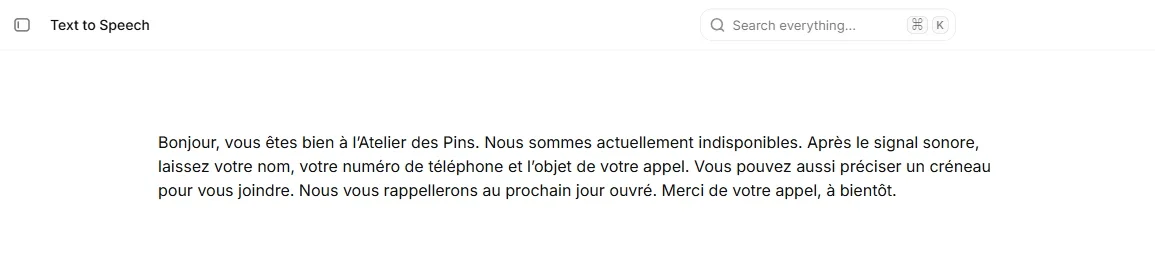
Open the voice picker and preview a few voices in the language of your greeting. For English, start with a natural English-speaking voice and a model that supports English. Listen for clarity and an easy pace, especially on names and numbers.
The French demo uses Chloé, Eleven Multilingual v2, 1× speed, and 50% Stability. Those values describe the example. The ElevenLabs Text to Speech guide explains how voice, model, and generation settings work together.
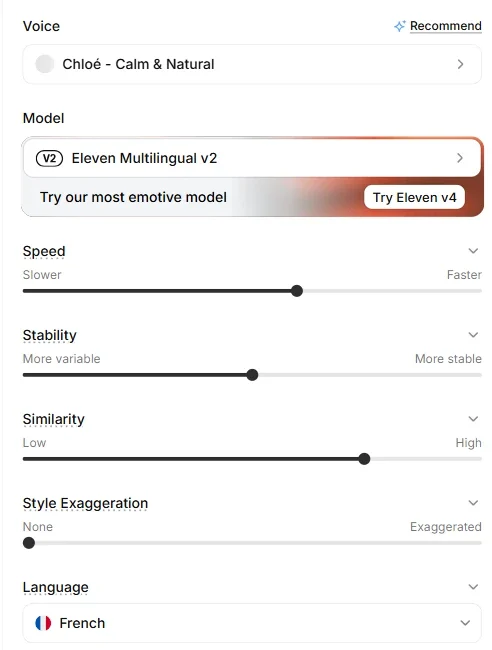
If your account shows different controls, check the selected model. Focus on whether you can understand the business name, the instructions, and the last line. Before clicking Generate speech, review the cost estimate and check that your plan covers business use. See the ElevenLabs Text to Speech product page for current options.
Review the finished file before installing it
Play the downloaded audio all the way through. If the company name sounds wrong, try a phonetic spelling in the synthesis script and regenerate that passage. Keep the correct spelling in your original script.
Make sure callers have time to process “your name, number, and a brief message.” If that part feels rushed, try shortening the rest of the greeting and adding a natural pause before adjusting several voice controls at once.
For an example of how different voices handle the same lines, listen to our ElevenLabs and HeyGen voice comparison. Play full sentences at similar volumes. If you prefer your own voice, record in a quiet room at a steady distance from the microphone. Our Voice Isolator guide shows how to remove background noise without replacing your voice.
Add the greeting to your voicemail
Check your carrier’s instructions or the phone system’s admin panel. Some systems let you import an audio file, while others ask you to record the greeting on the phone or in an app.
| Voicemail option | What to do | What to check |
|---|---|---|
| Import an audio file | Use the required format and upload the file. | Listen to the preview after import and confirm the duration. |
| Record a greeting | Follow the voicemail menu or app prompts. | Play it back before saving. |
| Choose a preset greeting | Check the options available on your service. | Confirm whether personalized greetings are supported. |
For example, the Apple iPhone voicemail guide explains how to record a custom greeting where the carrier and region support it. Check the exact audio requirements of your phone system before converting the source. Keep the original and listen to the first and last words of the imported version.
Test it from another phone.
Call your number, wait for voicemail, and listen to the greeting. Leave a test message if callers should be able to record one. That checks what they actually hear and what the system does next.
Save the script and the greeting together
Save the script with the exported file, using names such as voicemail-standard.mp3 and voicemail-holiday.mp3. Before switching greetings, double-check business hours, reopening dates, and callback times. To make an updated version, return to ElevenLabs with your revised script, then repeat the playback and phone test.
Frequently asked questions
What should a professional voicemail greeting say?
Say who the caller has reached, briefly explain that you’re unavailable, and ask for a name, callback number, and reason for the call. Tell them when they can expect a response.
Can I make a business voicemail greeting for free with ElevenLabs?
Check the credits and business usage rights on your plan. You can also read and record the same script yourself.
Do I have to record my own voice?
No. You can generate speech from a written script using a library voice, or record your own in a quiet room.
Was the finished example in the video generated with ElevenLabs?
The tutorial shows the ElevenLabs setup up to the generation step. HeyGen produced both the English greeting in the video and the separate French MP3 on this page.
Can I install an MP3 on any voicemail system?
File uploads depend on the service. Your provider may support a specific file format or ask you to record the greeting through its menu.
What should a holiday voicemail greeting include?
Keep the business name and instructions for leaving a message. Add when you’re closed and when you’ll start returning calls. Switch back to your regular greeting when you reopen.